
Plugable USB-C Triple Monitor Docking Station
4.4Editor score
Three extended HDMI displays
100W laptop charging
DisplayLink Mac support
Business deployment ready
This guide compares the best docking station for 3 monitors, focusing on display support, laptop charging, ports, compatibility, and setup needs.
A docking station for 3 monitors can turn a compatible laptop into a spacious desktop workstation with one cable, but the right model depends heavily on your operating system, ports, and display needs. The best options balance extended-screen support, charging, data speed, and dependable peripheral connectivity.
We compared all ten products by examining their monitor configurations, maximum resolutions, power delivery, networking, card readers, driver requirements, and platform limitations. The list includes native MST docks, DisplayLink models, Windows-focused alternatives, and more specialized designs with status displays or privacy controls.
Each review explains the strongest reasons to consider a particular dock, along with compatibility caveats that can affect extended displays or charging. Ratings reflect the supplied customer feedback, while specifications and availability may change. Current prices also vary, so compare the latest listing details before buying.
4.4Editor score

4.5Editor score

4.3Editor score
The table below compares all ten docks by their display architecture, extended-screen behavior, charging capacity, and most important connectivity features. It is designed to make the differences between native MST, DisplayLink, Windows-specific, and general-purpose models easy to understand.


The Selore 17-in-1 combines broad display support with the sort of convenience features usually found in more specialized workstation docks. Its 4.3 rating reflects a capable package, particularly for Windows users who want three extended screens, high-speed peripherals, wired networking, card reading, and laptop charging without maintaining a large collection of separate adapters.
We may earn a commission when you buy through this link, at no additional cost to you.
Five video outputs give the dock unusual flexibility. Windows systems can use three recommended combinations, including three HDMI outputs, two HDMI plus DisplayPort, or a mixed arrangement. The first two displays can run at 4K 60Hz, while the third is specified at 4K 30Hz. Two 10Gbps USB connections, two 5Gbps connections, Gigabit Ethernet, and SD/microSD slots extend the station's usefulness beyond video.
There are important trade-offs. macOS cannot provide three independent extended displays with this dock, and the listing specifies mirroring instead. The claimed 100W input becomes approximately 85W of laptop pass-through charging, while a charger of at least 87W is recommended and not included. The information screen also depends on Wi-Fi for weather updates and may require a firmware update when changing security settings.
This is a compelling choice for a Windows creator, analyst, or developer who wants a highly connected vertical dock and values a visible status panel. Buy it when your laptop supports full-featured USB-C with MST and DisplayPort Alternate Mode. It is less suitable for Mac users expecting independent desktop extension or for buyers who want every cable and power supply included.
Five video outputs make it easier to select displays based on connector type, refresh rate, and physical arrangement. The most important limitation is not port count but operating-system behavior: independent extension is intended for Windows, while Mac users are limited to mirrored output.
The built-in LCD can show local weather, date, time, and charging status, while the double-press control can blank external screens or shut down the dock. These are convenience and privacy features rather than substitutes for display performance, but they can make a shared or frequently unattended workstation more manageable.
We may earn a commission when you buy through this link, at no additional cost to you.
The TobenONE 18-in-1 is designed for users who want a laptop to function like a full desktop replacement. It combines three HDMI outputs with nine USB connections, wired networking, memory-card access, audio, and host charging. The result is a broad expansion hub that can reduce the number of adapters needed for a heavily equipped workstation.
We may earn a commission when you buy through this link, at no additional cost to you.
Its strongest selling point is port density. Three HDMI outputs support a triple-display arrangement, while the nine USB ports can accommodate a keyboard, mouse, storage devices, webcam, and other accessories. A 100W Power Delivery path is designed to keep the laptop charged during sustained productivity, and Gigabit Ethernet provides a stable wired network connection.
The dock is expressly customized for Windows and ChromeOS systems with full-featured USB-C ports. The supplied information does not support Mac recommendations, and it is not presented as a Mac solution. A compatible 68W or greater power supply is also needed for stable operation, but that adapter is not included. Buyers should therefore assess the total accessory cost and confirm their computer's video capabilities.
This model makes sense for a busy office, analyst, or content creator with several USB peripherals. It is especially attractive when one dock must support three screens and numerous accessories without a large collection of hubs. Windows users should verify MST and USB-C DisplayPort Alternate Mode support, while anyone considering a Mac should choose a DisplayLink-based alternative instead.
Nine USB ports reduce the need to swap between simple hubs, although connection speed may vary by port. This makes the TobenONE attractive for fixed desks where several devices remain connected and users prioritize a clean, consistently powered setup over a minimal portable design.
The listed triple-4K capability is strongest for compatible Windows and ChromeOS laptops using the recommended ports. macOS is not recommended, and host support remains essential because a USB-C connector alone does not guarantee MST, video output, or adequate charging.
We may earn a commission when you buy through this link, at no additional cost to you.
The Plugable 13-in-1 stands out for a more cross-platform proposition than most docks in this category. Its 4.4 rating is supported by a combination of three-display capability, 100W host charging, 20W front USB-C charging, business-oriented connectivity, and a complete package that includes the dock, host cable, power adapter, AC cord, and setup guide.
We may earn a commission when you buy through this link, at no additional cost to you.
The key technology is DisplayLink. It enables up to three extended HDMI displays on macOS systems that normally have stricter native display limitations, including listed M1 through M5 MacBook platforms and MacBook Neo. Windows, macOS 11+, and ChromeOS systems with USB-C, USB4, or Thunderbolt can use the station, although macOS users must install DisplayLink Manager and the first two additional outputs require driver setup.
Display specifications are more modest than the marketing found on some newer competitors. HDMI 1 can reach 4K 30Hz, while HDMI 2 and HDMI 3 are listed at up to 1920 by 1200 at 60Hz. Protected content from services such as Netflix and Hulu is not supported. On the positive side, the dock includes a Gigabit Ethernet port, SD reader, audio connections, and four 5Gbps USB-A ports for a professional, complete setup.
This is the strongest premium option for a mixed Windows-and-Mac organization, a home user who wants driver-assisted Mac expansion, or an IT team standardizing a fleet. It also earns consideration for offices that value compliance information, lifetime support, and included power equipment. Those who require three uniformly 4K 60Hz outputs should examine newer high-resolution alternatives more closely.
DisplayLink removes many of the usual barriers to multiple extended screens on Apple silicon, subject to driver installation. The approach adds software to the setup, but it gives compatible Mac users a practical path to three separate displays from one dock.
The included power adapter, host cable, compliance details, and lifetime support distinguish this model from docks that rely on users to source extra equipment. That makes it especially useful for managed offices, shared workspaces, and enterprise deployments where consistent installation matters.
We may earn a commission when you buy through this link, at no additional cost to you.
The Plugable 12-in-1 is a straightforward enterprise-style solution for users who want three HDMI displays and a broad collection of conventional workstation ports. Its 4.2 rating reflects a capable, professional design, though the mixed native and DisplayLink architecture produces some resolution limitations.
We may earn a commission when you buy through this link, at no additional cost to you.
One HDMI output operates through native USB-C Alternate Mode at up to 4K 30Hz. The other two use DisplayLink at up to 1080p 60Hz, allowing three extended screens. This hybrid approach is intended to bypass native single-display restrictions on modern Apple silicon systems and works across compatible Windows, macOS, and ChromeOS laptops.
The remaining connectivity is well suited to office deployment. Six USB 3.0 ports support peripherals, Gigabit Ethernet provides wired networking, and 100W USB-C Power Delivery charges the host. Compatibility is broad for laptops with USB-C, USB4, or Thunderbolt, although macOS requires driver installation, Linux is not supported, and HDCP-protected content is excluded.
This dock is a sensible fit for a business analyst, office manager, or hybrid team that prioritizes three recognizable HDMI connections over identical 4K output. Plugable's lifetime support and compatibility guarantee add confidence for a fixed installation. Users needing higher resolution on every screen should instead look toward the newer 15-port model or a native triple-4K MST design.
Combining native Alternate Mode with DisplayLink provides broader platform support than a purely native dock, but the outputs are not identical. One can reach 4K 30Hz, while the DisplayLink outputs top out at 1080p 60Hz, making resolution expectations important before purchase.
Six USB 3.0 ports and Gigabit Ethernet cover the needs of most conventional office desks. The lack of newer high-speed USB-C and 2.5GbE options may matter for media professionals, but many knowledge workers will find this arrangement straightforward and dependable.
We may earn a commission when you buy through this link, at no additional cost to you.
The HoDo USB C 8-in-1 provides a comparatively direct route to a three-screen laptop setup. It combines two HDMI outputs, DisplayPort, and VGA, along with three USB 2.0 ports and USB-C charging. Its 4.3 rating makes it a credible budget-oriented choice for users who need extended screens more than they need advanced media or networking features.
We may earn a commission when you buy through this link, at no additional cost to you.
The dock can output dual 4K or triple video, but the exact arrangement depends on the selected connectors. Two HDMI outputs are listed at 4K 60Hz and 4K 30Hz, while DisplayPort can also provide 4K 60Hz. If VGA is used, the entire display group is restricted to 1080p. The host must support DisplayPort 1.4 and a full-featured USB-C port.
Charging reaches up to 100W input and approximately 87W safe output to the laptop, provided a suitable USB-C power adapter and a compatible host are used. The three USB 2.0 ports are suitable for keyboards, mice, and flash drives, with transfer rates up to 480Mbps, but they are not appropriate for demanding external storage workflows.
This is best for a Windows user with a compatible USB-C laptop who wants broad monitor connector choice on a restrained budget. It is less attractive for Mac users because the supplied information states that external screens show the same content in mirror or extended modes, and it lacks Ethernet, audio, card readers, and modern USB-C data ports. Check the host compatibility list carefully before ordering.
Two HDMI ports, DisplayPort, and VGA make it easy to reuse a wider range of monitors. The headline triple-display support is most useful with modern digital connections, since engaging VGA reduces the resolution available across the group.
The older USB 2.0 interface and lack of Ethernet make this a basic dock rather than a complete workstation hub. It remains practical when the priority is extending several screens, accepting a laptop, and connecting basic input devices without paying for a feature-heavy alternative.
We may earn a commission when you buy through this link, at no additional cost to you.
The Acer 13-in-1 is the most well-rounded native docking option in this group. It carries the highest listed rating at 4.5, combines a clean aluminum enclosure with a broad port selection, and supports three independent displays for compatible Windows laptops. The included 110W adapter and host cable also make it more complete than many competitors.
We may earn a commission when you buy through this link, at no additional cost to you.
Two HDMI ports and one DisplayPort 1.4 output provide several ways to organize a three-screen desk. Compatible Windows systems using MST can extend content across all three displays, and laptops with Display Stream Compression can drive triple 4K output at 30Hz. macOS is limited to mirrored output, and the dock cannot power or charge an external monitor through its host connection.
The remaining ports cover a professional workload: three USB-A ports, two USB-C connections, Gigabit Ethernet, a 3.5mm audio jack, and simultaneous SD and microSD reading. The aluminum body is designed to dissipate heat, while an integrated security slot can help deter physical removal in offices, dormitories, and shared spaces.
This is our Editor's Choice for Windows users who want a polished, all-in-one station with strong independent-display support and fewer accessory purchases. It is particularly suitable for a permanent desk with several screens, wired networking, and card-based file transfers. Confirm that your laptop supports MST and, for triple 4K, Display Stream Compression. Mac buyers who require three separate screens should choose a DisplayLink model.
The 110W power adapter, USB 4.0 Type-C cable, dock, and documentation are included. For a permanent workstation, that reduces setup friction and provides a more generous power budget than docks that require users to find a compatible adapter separately.
The aluminum enclosure, wired networking, card readers, security slot, and broad display support make this feel like a conventional enterprise accessory. Its three displays can organize analytical, creative, or communication workflows without the recurring swaps associated with a laptop-only setup.
We may earn a commission when you buy through this link, at no additional cost to you.
The Selore 13-in-1 prioritizes a simple proposition: connect three HDMI monitors to a compatible Windows laptop, add fast peripherals, and keep the host powered. Its 4.3 rating reflects a useful and relatively approachable package with three dedicated 4K 60Hz outputs and no need for DisplayLink drivers on supported Windows systems.
We may earn a commission when you buy through this link, at no additional cost to you.
Twelve functional ports are joined by a dedicated screen-control button. The connector set includes three HDMI ports, two 10Gbps USB-C ports, one 10Gbps USB-A port, two USB-A 2.0 ports, SD and microSD slots, Gigabit Ethernet, and 100W Power Delivery 3.0 charging. The design also supports mirror and extend modes on compatible systems.
Windows laptops with DisplayPort Alternate Mode or Thunderbolt 3/4 can use the three-display configuration through MST. macOS cannot provide the same full independent triple-screen experience; the supplied details state that it supports up to two displays in an extended-plus-mirrored arrangement. This makes the product a stronger choice for Windows users than for Mac workstations.
The Selore is attractive for users who prefer three identical HDMI connections, fast file transfer, and broad peripheral support without installing graphics software. It fits creative, office, and study desks where Windows dominates. Confirm host compatibility, use an adequate USB-C power source, and verify your preferred display arrangement before purchase.
Using identical displays and cables can simplify desk planning and cable management. Dedicated HDMI outputs make the setup approachable for Windows users, although the native MST architecture places the final display-mode responsibility on the host operating system and graphics hardware.
Two 10Gbps USB-C ports, a 10Gbps USB-A port, and UHS-I card slots support common file-transfer workflows. The combination is useful for moving images and video from a camera, although the supplied details do not describe the dock as a high-resolution media editing solution.
We may earn a commission when you buy through this link, at no additional cost to you.
The TobenONE DisplayLink 18-in-1 is the most expansive dock in this comparison, with three HDMI outputs, three DisplayPort outputs, 18 total ports, and support for as many as four extended displays on qualifying Windows systems. Its 4.4 rating reflects a feature-rich option for users whose workflows demand more flexibility than a basic three-screen hub.
We may earn a commission when you buy through this link, at no additional cost to you.
DisplayLink technology allows multiple high-resolution outputs from one connection. The supplied details describe triple and quad 4K 60Hz combinations using HDMI, DisplayPort, or a mixture. Mac systems are listed as supporting up to three monitors, while compatible Windows systems may support four when the host USB-C port provides suitable video output. The correct driver must be installed before use.
Host charging reaches 100W, with an additional 18W front USB-C charging output. A 120W adapter is included, making the package more self-contained. Connectivity includes four USB 3.1 ports, two Type-C ports, Gigabit Ethernet, card readers, and audio. The dock supports current Windows, macOS, ChromeOS, Ubuntu, and Android platforms, subject to full-featured USB-C and the stated operating-system limitations.
This model is ideal for a high-end desk that may grow from three to four screens, particularly for stock monitoring, streaming, development, or video production. The included adapter and broad connector selection reduce friction. Protected streaming content is unsupported because of screen-recording functionality, so users who watch subscription video in protected applications should verify their requirements before installation.
Six display outputs create room to reorganize as workflows change. The four-monitor ceiling is specific to compatible Windows hosts, while macOS is listed for up to three, making operating-system planning essential before arranging a larger desk.
The included 120W adapter is a meaningful convenience for a dock capable of driving several displays while charging the host and peripherals. It also helps users avoid pairing the station with an undersized supply that could lead to unstable operation.
We may earn a commission when you buy through this link, at no additional cost to you.
The Plugable 15-in-1 delivers a modern Windows workstation through a driverless MST design. It supports three HDMI extended displays, 100W host charging, a separate 30W USB-C charging port, 2.5GbE networking, and 15 total ports. Its 4.4 rating makes it one of the strongest choices for a modern Windows or ChromeOS desk.
We may earn a commission when you buy through this link, at no additional cost to you.
The display arrangement supports either a dual 4K 60Hz configuration or three screens consisting of one 4K 60Hz display and two 1080p 60Hz displays. That makes it well suited to data analysts, financial users, and creative professionals who can benefit from a detailed primary screen supported by secondary panels. The dock can be placed horizontally or vertically to suit the available space.
Peripheral connectivity is especially modern. Two 10Gbps USB-C ports, one 10Gbps USB-A port, two 5Gbps USB-A ports, and one USB 2.0 port support storage and accessories. The 2.5GbE connection exceeds standard gigabit Ethernet, while SD and microSD readers and a 3.5mm audio jack complete the desk-focused feature set.
This is a strong recommendation for a Windows 11 or compatible ChromeOS laptop with USB-C video support, USB4, or Thunderbolt. It is not recommended for Mac or ARM-based systems, so DisplayLink alternatives are more appropriate there. Buyers seeking three identical 4K 60Hz displays should note the listed triple-mode resolution limits.
The 2.5GbE port and mixture of 10Gbps and 5Gbps USB connections make this more future-oriented for data-heavy desks. These features are particularly valuable when moving large files between fast storage and maintaining low-latency wired network access.
The lack of DisplayLink software simplifies installation on supported Windows and ChromeOS systems, but native MST output still depends on the laptop, operating system, graphics configuration, and display settings. The host must support USB-C video output, USB4, or Thunderbolt as applicable.
We may earn a commission when you buy through this link, at no additional cost to you.
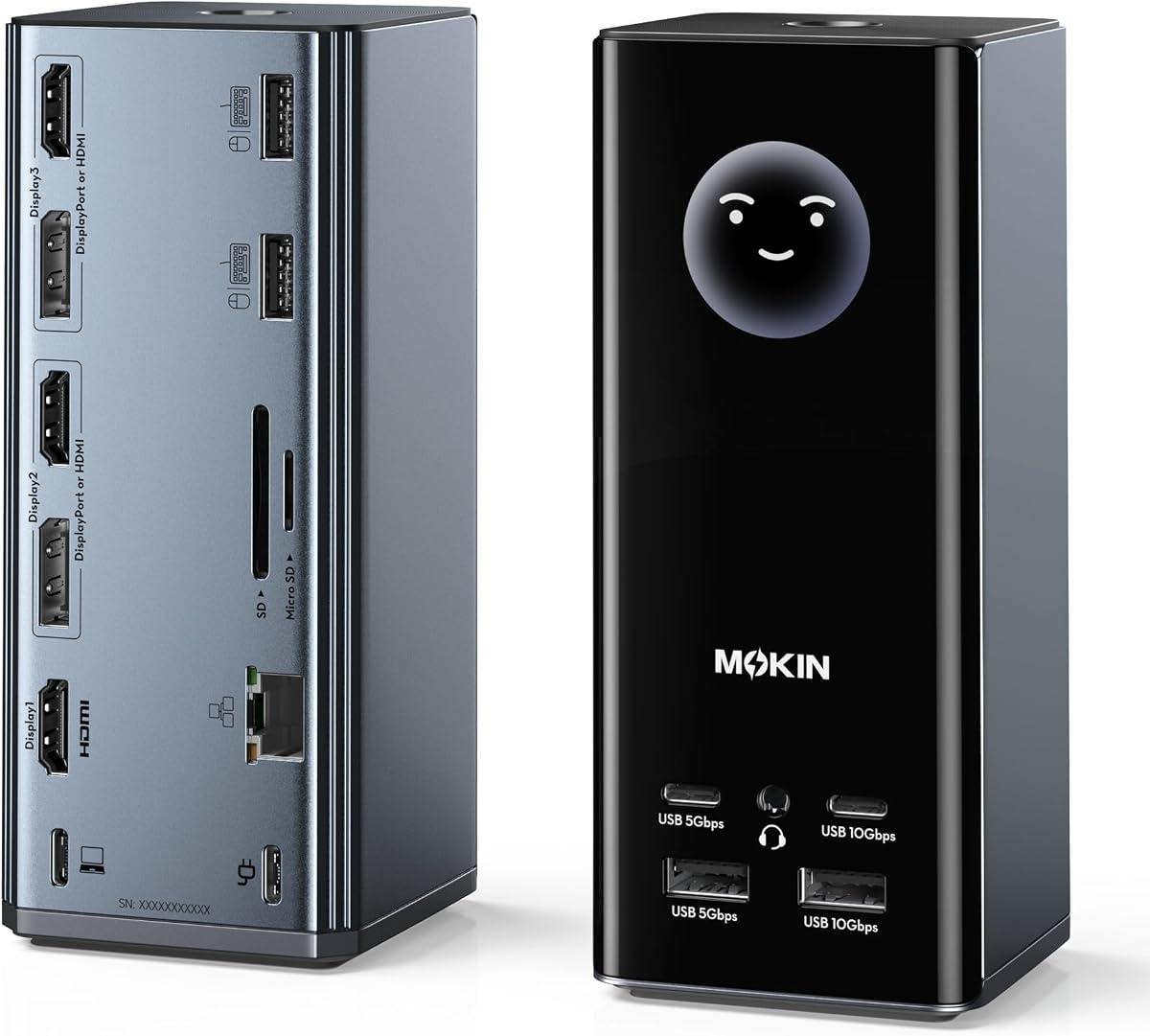
The MOKiN 17-in-1 combines a capable triple-display dock with an unusual smart LCD and a physical privacy control. Its 4.2 rating reflects a feature-rich design aimed primarily at Windows users who want flexible video outputs, fast data connections, and quick workstation status information.
We may earn a commission when you buy through this link, at no additional cost to you.
Three HDMI and two DisplayPort outputs can be combined in several arrangements to create three independent screens. The listing describes support for up to three independent 4K 60Hz monitors, connected through USB-C, USB4, or Thunderbolt. Different content can be extended only on Windows, so Mac users should regard this primarily as a mirrored or limited-output option.
The built-in Wi-Fi LCD synchronizes local weather and can show charging wattage, display resolution, and port status. Double-tapping the lock button turns off external screens, while silicone suction cups help stabilize the dock. Connectivity includes 10Gbps USB-C and USB-A connections, 5Gbps ports, two USB 2.0 ports, Gigabit Ethernet, a card reader, and a 3.5mm audio connection.
The dock accepts up to 100W input and can pass approximately 85W to the laptop, though a 100W or greater adapter is recommended for full-load use and is not included. This is a distinctive option for a Windows workstation where quick information and screen privacy matter. Users who need uncomplicated installation and no built-in screen may prefer a more conventional MST or DisplayLink station.
The LCD can reduce the need to open system menus simply to check charging, resolution, or connected ports. The weather function is a secondary convenience, but it makes the dock more useful as a central desk hub rather than a hidden port cluster.
The double-tap screen control can blank external monitors without requiring the computer to be locked, and the suction base helps keep the station steady during frequent interaction. These features are particularly relevant in offices, studios, and shared areas where visual privacy is important.
We may earn a commission when you buy through this link, at no additional cost to you.
Choosing a triple-monitor dock involves more than counting video outputs. Your operating system, laptop capabilities, monitor resolutions, power needs, peripheral mix, and tolerance for driver software will determine whether a dock is genuinely suitable.
Summary: Verify independent extended displays, not merely three connectors.
Summary: Compare every screen's resolution and refresh rate with the dock's output limits.
Summary: Match the dock to your operating system before comparing ports or resolution.
Summary: Require full-featured USB-C video and power-delivery support.
Summary: Use an adequately sized adapter and distinguish input from laptop output.
Summary: Prioritize connection speed, useful readers, networking, and desk-specific features.
Summary: Match size, orientation, and controls to the physical workstation.
Summary: Account for drivers, protected content, and ongoing software support.
Begin by checking the laptop's compatibility with the dock's required video mode, operating system, and charging protocol. Connect the host cable to a compatible USB-C, USB4, or Thunderbolt port, attach the displays according to the manufacturer's recommended output combination, and use the power adapter if one is required. Install any necessary DisplayLink or MST software before expecting all screens to extend independently.
Configure the host operating system next. Select the appropriate extended or mirror mode, rearrange the numbered displays to match their physical locations, and select the intended native resolution and refresh rate for each panel. Connect peripherals only after the displays are stable, then verify that the dock is charging the laptop and that the network, card reader, and audio connections are recognized.
For daily care, keep ventilation openings unobstructed and avoid placing the dock on soft fabric that can trap heat. Route the host and display cables so they are not sharply bent or pulled. When disconnecting the laptop, unplug the host cable before removing individual accessories. Update firmware or drivers as directed, and periodically inspect connectors for dust or damage.
A dock can provide three video outputs, but the laptop must also support suitable video modes, usually DisplayPort Alternate Mode, Thunderbolt, or USB4. On Windows, compatible MST systems can often extend across three displays. Mac users generally need a DisplayLink dock to bypass native display limitations. Always verify the full host compatibility requirements.
No. Many triple-monitor docks support one 4K 60Hz display and two 1080p 60Hz displays, while others offer three 4K outputs at 30Hz. Some DisplayLink models mix a 4K 30Hz output with two 1920 by 1200 outputs. The correct arrangement depends on the dock, its output combination, and the host laptop's capabilities.
Yes, if the dock uses DisplayLink and the Mac meets the listed system requirements. Native MST docks in this list generally provide mirrored or limited output on macOS rather than three independent desktops. The Plugable DisplayLink options and the TobenONE DisplayLink model are the most relevant choices for Mac users who need extended multi-screen workspaces.
Most models support USB-C Power Delivery, but the amount delivered varies. Several accept up to 100W at the dock while passing approximately 85W to the laptop. Acer and TobenONE include substantial power adapters, while Selore, HoDo, and MOKiN require an appropriate compatible adapter. The host's USB-C port must also support charging.
MST uses the graphics capabilities of the host computer to combine multiple display outputs, making it most useful with compatible Windows laptops. DisplayLink uses a software and chip-based graphics system, allowing more displays on certain macOS systems but requiring a driver. DisplayLink can introduce dependency on driver updates and may not support protected streaming content.
The computer may be in mirror mode, the macOS restrictions may apply, or the selected video combination may not support independent extension. Check the dock's recommended output arrangement, enable the correct extend mode, and confirm that the host laptop supports MST or has the required DisplayLink driver. Some docks also reduce all outputs when legacy VGA is connected.
It depends on the model. Acer includes a 110W adapter, and the TobenONE DisplayLink dock includes a 120W adapter. Other listed products do not include one and recommend a suitably powerful USB-C supply. Underpowering a dock can lead to charging warnings, unstable displays, or unreliable operation when multiple screens and peripherals are active.
A dock does not increase processor or graphics performance, but it can improve workflow by providing more screen space. That can reduce repeated window switching and allow related applications to remain visible at once. Performance still depends on the laptop, the selected display resolutions, and the workload; high-resolution outputs may place more demand on integrated or discrete graphics.
The Plugable 13-in-1 is the strongest premium and cross-platform choice, particularly for Mac users who need DisplayLink expansion and a complete deployment-ready package. The Acer 13-in-1 is the Editor's Choice for Windows users seeking a polished native dock, independent triple displays, included power equipment, and a broad set of desk connections.
For a more restrained setup, the HoDo 8-in-1 provides triple video output and laptop charging with a more basic port arrangement. Buyers should prioritize operating-system support, exact display resolutions, host USB-C capabilities, and included accessories before considering additional smart features. Native MST is often simpler, while DisplayLink is more valuable when macOS extension is essential.
Monitor listings, firmware, driver behavior, and prices can change, so confirm the latest specifications and current cost before ordering. Checking your laptop model against the manufacturer's compatibility list is the most important final step. Once that match is confirmed, the right dock can create a cleaner, more productive three-screen workspace with one dependable connection.