
HP DeskJet 2955
3.7Editor score
Compact wireless design
All-in-one functionality
Straightforward home printing
A printer with the least problems should do more than produce acceptable pages. It should connect reliably, handle everyday documents without frequent intervention, support the features you actually use, and avoid turning routine maintenance into a recurring frustration. The best choice depends heavily on print volume, document handling, ink system, and workspace.
This guide compares ten wireless color inkjet and ink-tank printers based on their supplied specifications, customer ratings, connectivity, scanning and copying functions, paper handling, and maintenance approach. It covers compact home models, office-oriented all-in-ones, cartridge-free systems, and devices designed for heavier document workflows.
Each pick highlights a different balance of strengths: easy setup, useful controls, automatic duplexing, document feeders, mobile printing, or high-capacity ink systems. Ratings and feature availability can evolve, while prices and promotions change frequently, so verify the current listing, printer specifications, and cartridge requirements before purchasing.
3.7Editor score

4.2Editor score

4.0Editor score
As an Amazon Associate we earn from qualifying purchases.
The comparison below focuses on the factors most likely to affect reliability and day-to-day convenience, including connectivity, document handling, duplexing, scanning, ink management, and control options.





The Canon PIXMA TS6520 combines a 4.2 customer rating with a particularly useful mix of convenience features for a home or hybrid workspace. It supports wireless color printing, scanning, copying, automatic two-sided printing, and a 1.42-inch monochrome OLED display. That combination makes it easier to manage than a basic entry-level model without expanding into the footprint of a larger office printer.
We may earn a commission when you buy through this link, at no additional cost to you.
Automatic duplex printing is one of its most valuable features because it reduces paper use and eliminates the need to turn sheets manually. Dual-band Wi-Fi on both 2.4GHz and 5GHz networks offers a useful degree of connection flexibility, while the OLED screen provides quick access to ink levels, printer status, and settings. Compatibility with the Canon PRINT App, Apple AirPrint, and Mopria Print Service broadens the mobile-printing options.
Its main limitations are visible in the paper-handling area. Unlike the Canon PIXMA TR7120, it does not include an automatic document feeder, so multi-page scanning and copying require more individual attention. It also uses a two-cartridge hybrid ink system rather than a refillable tank, which may be less interesting for people who print very high page volumes. Neither issue undermines its usefulness for typical documents, homework, recipes, forms, and photos.
This is the most balanced recommendation for readers seeking a printer with the least problems in a compact home-office environment. Choose the TS6520 if duplexing, stable wireless connectivity, a visible status screen, and mobile printing matter more than feeder-based batch scanning. It is especially suitable for users who want modern controls without a large or complicated office device.
Automatic two-sided printing makes long reports, notes, and web documents more convenient while reducing paper consumption. The feature also gives the TS6520 an advantage over many similarly compact all-in-one printers.
The OLED display makes it easier to check ink status and printer conditions without navigating a computer or phone. At-a-glance information can help prevent small maintenance issues from becoming interrupted print jobs.
We may earn a commission when you buy through this link, at no additional cost to you.
The HP OfficeJet Pro 8125 has a 3.9 rating and is built for home offices that regularly produce color documents. It prints up to 20 pages per minute in black and 10 pages per minute in color, with automatic duplex printing, scanning, copying, an automatic document feeder, and a 225-sheet input tray. It offers more document-handling capability than the Canon TS6520 while remaining positioned for a home office.
We may earn a commission when you buy through this link, at no additional cost to you.
The 2.7-inch color touchscreen and phone-like interface make operation straightforward. HP AI can help format web pages and emails so they print without awkward layouts or unnecessary content. The supplied description also highlights dual-band Wi-Fi that automatically detects and resolves connection issues, along with app-based printing, scanning, copying, and faxing. More than 45% recycled plastic content adds an environmental design consideration.
The printer is designed to work only with cartridges containing original HP chips or circuitry, and it will block cartridges using non-HP chips or circuitry. Firmware updates are expected to maintain that restriction. The included Instant Ink trial may be convenient for testing the delivery program, but a monthly fee applies after the trial unless canceled, so users who do not want a subscription should review the terms carefully.
The OfficeJet Pro 8125 is a strong choice for a hybrid worker or family office that values an automatic feeder, a larger paper tray, and convenient touchscreen controls. It may be excessive for occasional use, but for regular reports, forms, worksheets, and color materials, the additional handling capacity can meaningfully reduce interruptions.
The automatic document feeder is particularly useful for multi-page forms and records. Combined with automatic duplex printing, it can reduce the amount of manual handling required for common office jobs.
HP AI formatting tools can remove unwanted page content and improve the presentation of web pages and emails. This is useful when material originally designed for a screen is being prepared for paper.
We may earn a commission when you buy through this link, at no additional cost to you.
The HP DeskJet 2923 is a straightforward all-in-one for users who mainly need everyday color documents, letters, recipes, financial papers, and school assignments. Its 3.7 rating reflects a basic positioning, but the supplied features cover the essentials: printing, copying, scanning, wireless connectivity, and mobile printing through the HP app.
We may earn a commission when you buy through this link, at no additional cost to you.
Its icon LCD keeps on-device operation simple, while dual-band Wi-Fi is described as automatically detecting and resolving connection issues. HP AI formatting helps produce cleaner web-page and email printouts. Print speeds reach up to 7.5 pages per minute in black and 5.5 pages per minute in color, which is suitable for light household or home-office demand rather than large batches.
The 60-sheet input tray is one of the main limitations. Users with frequent print jobs may need to refill paper more often than they would with a 150-, 225-, or 250-sheet tray. The model also has a compact design and is made with at least 70% recycled plastics. It is also ENERGY STAR and EPEAT certified according to the supplied information.
Choose the DeskJet 2923 when simplicity, wireless access, and essential functions matter more than speed, capacity, and advanced page handling. It is a sensible budget-oriented option for a student room, apartment, or quiet home workspace where basic color documents are the main requirement.
The icon LCD and straightforward interface help keep the DeskJet 2923 approachable. Wireless and mobile printing also make it convenient to begin jobs without repeatedly transferring files to a nearby computer.
At least 70% recycled plastic content, ENERGY STAR certification, and EPEAT certification make this a more environmentally conscious basic printer option. It also avoids the subscription requirement for users who prefer not to enroll in an ink delivery program.
We may earn a commission when you buy through this link, at no additional cost to you.
The HP DeskJet 2955 is a compact wireless color inkjet all-in-one with a 3.7 rating. Its primary appeal is simplicity: it brings printing, scanning, and copying into a home-oriented device without the larger controls and document feeders found on many office-oriented models. The listed weight of 10.45 pounds also makes it comparatively manageable to reposition.
We may earn a commission when you buy through this link, at no additional cost to you.
The supplied product information confirms wireless capability and the all-in-one format, but it is much less detailed than the information available for the other models. It does not list automatic duplex printing, an automatic document feeder, paper capacity, or exact print speeds. Buyers should therefore consult the current product page and manual rather than assuming those features are present.
Its sparse specification is a meaningful consideration. Without confirmation of duplexing, input capacity, display type, and mobile compatibility, it is difficult to compare this model precisely with the DeskJet 2923, which provides those details. Its current rating also places it below several other models in the list, although individual experiences can vary depending on printing habits and network setup.
The DeskJet 2955 may suit a straightforward household printing need, but it is a less informed recommendation than the other wireless all-in-ones because key specifications are not supplied. Confirm the exact functions, cartridge compatibility, and current customer feedback before making it your final choice.
The all-in-one format and listed weight of 10.45 pounds suggest a device intended for a normal home workspace. It is relevant for users seeking basic wireless color printing without a large office-style chassis.
The limited supplied details make the current product listing especially important. Check duplexing, paper capacity, supported apps, and scanning specifications rather than assuming they match other DeskJet models.
We may earn a commission when you buy through this link, at no additional cost to you.
The HP OfficeJet Pro 9125 earns a 4.0 rating and stands out as the strongest office-focused option in this group. It combines fast printing—up to 22 pages per minute in black and 18 pages per minute in color—with a 250-sheet input tray, automatic duplex printing and scanning, an automatic document feeder, and a built-in fax function.
We may earn a commission when you buy through this link, at no additional cost to you.
The 2.7-inch color touchscreen provides more direct control than a basic LCD. HP AI formatting supports cleaner web and email printouts, while dual-band Wi-Fi and the HP app expand setup and mobile access. The device also includes HP Wolf Pro Security to help protect the connected network, and its enclosure uses more than 40% recycled plastic content.
As with the OfficeJet Pro 8125, compatibility is limited to cartridges with original HP chips or circuitry, and the printer blocks cartridges using non-HP chips or circuitry. Firmware updates are expected to maintain those restrictions. The Instant Ink trial converts to a monthly plan unless canceled, so customers should assess whether subscription-based ink delivery suits their habits before enrolling.
The OfficeJet Pro 9125 is the premium pick for offices, administrators, and high-volume home offices that value speed and paper-handling capacity. Its larger tray, faster color output, duplex scanning, feeder, and fax support justify the extra complexity for demanding users, while a basic compact model may be more appropriate for light home printing.
Color output of up to 18 pages per minute and black output of up to 22 pages per minute help reduce waiting during multi-page jobs. The 250-sheet tray further limits the frequency of paper refills.
HP Wolf Pro Security adds a stronger security layer for offices and network-connected workspaces. It is a meaningful differentiator for users who print sensitive material or manage the device in a shared professional environment.
We may earn a commission when you buy through this link, at no additional cost to you.
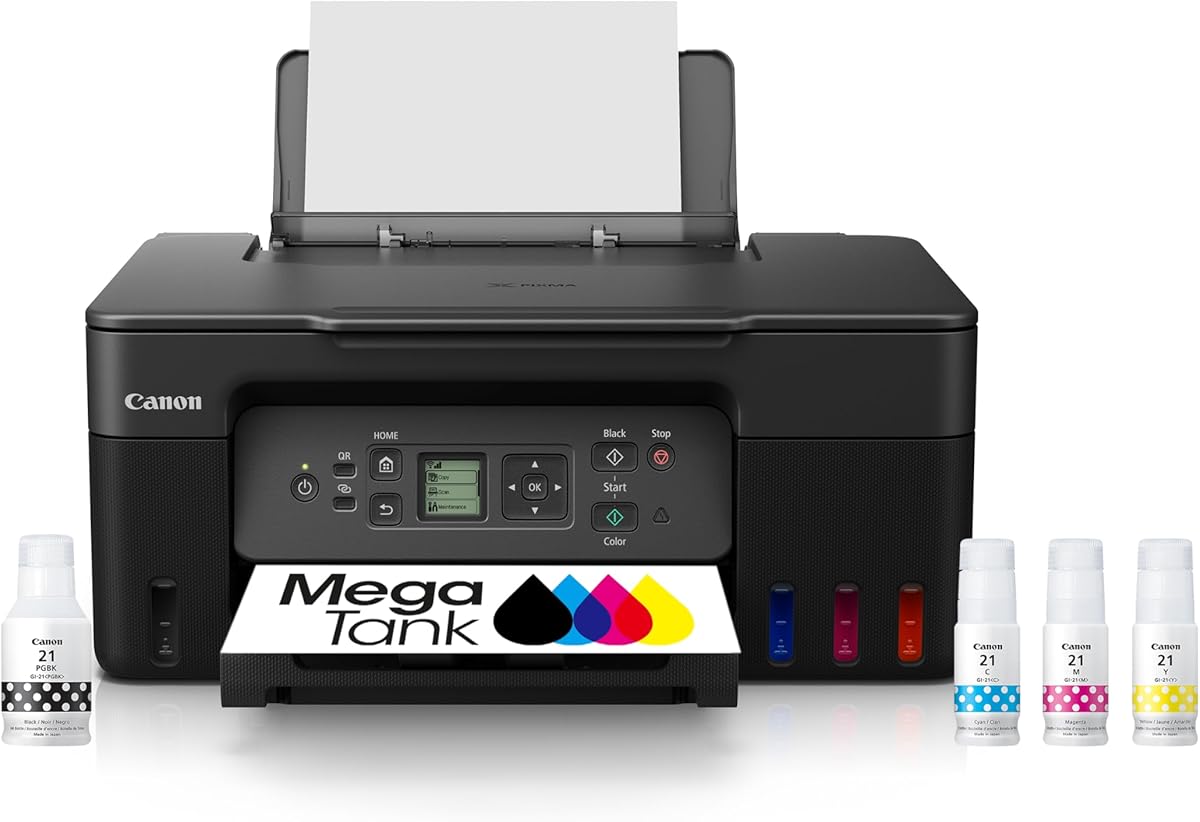
The Canon MegaTank G3270 has a 4.1 rating and offers a different reliability proposition from cartridge-based models. Its refillable ink system includes enough ink for up to 6,000 black-and-white pages or 7,700 color pages according to the supplied information. That substantial starting capacity can reduce interruptions caused by frequent cartridge replacement.
We may earn a commission when you buy through this link, at no additional cost to you.
The printer supports wireless printing, copying, and scanning, with a 1.35-inch square LCD for device navigation. Canon positions the MegaTank range around economical high-volume printing, making it attractive for households, students, and small offices that want to avoid repeatedly buying small ink cartridges.
The principal limitation is clear: the G3270 supports single-sided printing only. It therefore lacks the automatic duplexing found in the Canon TS6520, Canon TR7120, Brother Work Smart 1360, and HP OfficeJet Pro models. For users who routinely print lengthy reports, that limitation can add time and make double-sided document handling less convenient.
Choose the G3270 when affordable ink capacity and fewer cartridge replacements are your leading priorities. It is a practical high-volume choice, but users frequently printing two-sided pages should choose a model with automatic duplexing even if they consider refillable ink less important.
The MegaTank system can print thousands of pages with one set of inks. This reduces the recurring inconvenience of cartridge changes and makes the printer better suited to users who produce substantial text or color output.
The square LCD offers more interaction than a basic indicator panel. However, the single-sided printing limitation should be considered before choosing the device for office documents that are normally printed on both sides.
We may earn a commission when you buy through this link, at no additional cost to you.
The Epson EcoTank ET-4800 combines a 3.8 rating with a cartridge-free printing system and a full set of home-office functions. It prints in color, scans, copies, and connects wirelessly, while the high-capacity tanks are designed to reduce the need for small replacement cartridges. Epson EcoFit ink bottles provide a straightforward way to replenish the reservoirs.
We may earn a commission when you buy through this link, at no additional cost to you.
Its Micro Piezo Heat-Free technology is intended to produce sharp text along with clear color photos and graphics across different paper types. The built-in high-resolution flatbed scanner and color display make it useful for copying and managing documents without requiring a separate scanner or computer workflow.
Refillable tanks also help reduce cartridge waste and avoid the inconvenience of running out of ink at an inconvenient moment. The trade-off is a device designed around a different maintenance model. Users must refill the tanks, and the supplied information does not list automatic duplexing or an automatic document feeder, both of which are important distinctions for busy offices.
The ET-4800 is a good fit for households and home offices that value economical ink capacity, wireless flexibility, and scanning in one device. Those who routinely scan multi-page documents or print two-sided reports should confirm those features on the current listing or consider a model with a feeder and automatic duplexing.
High-capacity tanks make the ET-4800 suitable for users who want to avoid the expense and interruption of frequent small-cartridge changes. The refillable system is the core reason to choose this model over a conventional cartridge printer.
The integrated flatbed scanner and copier eliminate the need for separate scanning equipment. A color display also provides more convenient navigation than a printer that offers only basic print controls.
We may earn a commission when you buy through this link, at no additional cost to you.
The Canon PIXMA TR7120 shares the TS6520's 4.2 rating while adding an automatic document feeder. It is a compact wireless color inkjet for home users and hybrid workers, with printing, scanning, copying, automatic two-sided printing, a 1.42-inch monochrome OLED, and dual-band Wi-Fi. The added feeder makes it better suited to multi-page paperwork.
We may earn a commission when you buy through this link, at no additional cost to you.
Its 2-cartridge hybrid ink system is designed to produce sharp text and vivid color for documents and photos. The OLED display provides quick access to ink levels and status information. Mobile printing works through the Canon PRINT App, Apple AirPrint, and Mopria Print Service, giving users several ways to send jobs from a phone or tablet.
Compared with the TS6520, the principal advantage is the automatic document feeder, which allows batches of pages to be copied or scanned without handling each sheet manually. The trade-off is that the TR7120 is somewhat more complex and may have a larger footprint. As with other cartridge-based models, it is not the most natural option for extremely high page volumes.
Choose the TR7120 if your regular work includes copying or scanning multiple pages but you still want a relatively compact printer. It offers one of the strongest combinations of duplexing, wireless support, visible controls, and feeder-based convenience in this roundup.
The automatic document feeder is the key distinction from the TS6520. It reduces repetitive page handling when copying forms, records, or multi-page documents.
Automatic two-sided printing helps conserve paper without enlarging the printer into a full office machine. That balance is especially useful in apartments and hybrid workspaces where space is limited.
We may earn a commission when you buy through this link, at no additional cost to you.
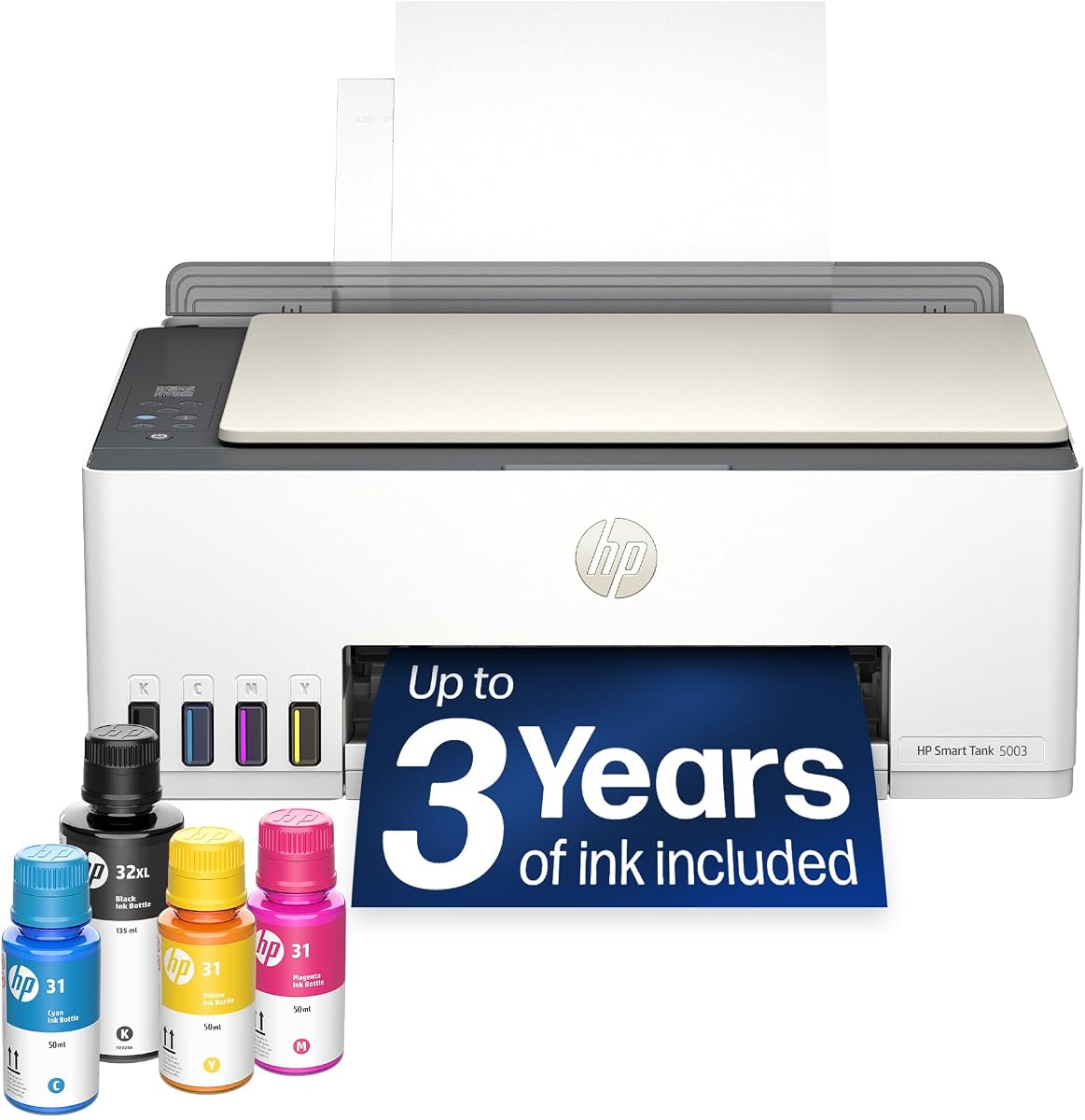
The HP Smart Tank 5003 has a 3.9 rating and focuses on making ink maintenance less troublesome. The included information describes up to three years of HP ink and an initial capacity of up to 6,000 color or black pages. Its cartridge-free tank design and bottle-based refill process reduce the need to swap small ink cartridges.
We may earn a commission when you buy through this link, at no additional cost to you.
The printer handles printing, copying, and scanning, with wireless and mobile printing plus borderless output. HP describes the refill system as mess-free: users plug an ink bottle into the tank and allow it to drain without squeezing or spilling. This design can be particularly helpful in shared rooms where a cartridge replacement could create clutter or leaks.
The supplied specifications do not list automatic duplex printing, an automatic document feeder, a touchscreen, or a particular paper capacity. It is therefore a more suitable recommendation for users who value ink convenience and modest document workflows than for offices that require automatic batch processing. Confirm the current manual and listing before making assumptions about office features.
The Smart Tank 5003 is a strong option for color-heavy households and small workspaces that want a low-maintenance ink system. Its appeal rests on refill convenience and a substantial included ink supply rather than advanced office controls or feeder-driven productivity.
The tank-and-bottle system avoids the process of opening, inserting, and discarding traditional cartridges. The plug-and-drain approach can make replenishment more approachable for shared or busy workspaces.
An allowance of up to 6,000 pages makes the printer less dependent on immediate supply purchases. That is especially helpful for users who want to establish a printing routine before determining their long-term page volume.
We may earn a commission when you buy through this link, at no additional cost to you.
The Brother Work Smart 1360 has a 3.8 rating and packs a substantial collection of useful features into a compact all-in-one. It prints, copies, and scans in color, supports automatic duplex printing, includes a 20-sheet single-sided automatic document feeder, and has a 150-sheet paper tray. Those specifications give it one of the more complete feature sets for a small office.
We may earn a commission when you buy through this link, at no additional cost to you.
Its 1.8-inch color display provides direct access to Google Drive, Dropbox, Box, OneDrive, and other cloud services. The Brother Mobile Connect app supports printing, copying, scanning, device management, and ink monitoring through Page Gauge. Users can also connect through a wireless network or USB, giving them more than one setup path.
Print speed reaches up to 16 pages per minute in black and 9 pages per minute in color. The 150-sheet tray is substantially larger than the 60-sheet tray in the DeskJet 2923, and the feeder gives the Brother an advantage for batch copying and scanning. On the other hand, the 20-sheet feeder is smaller than the office-oriented HP models, and the device does not have a touchscreen or fax function according to the supplied data.
Choose the Work Smart 1360 when you want automatic duplexing, a respectable paper capacity, cloud connectivity, and mobile device management in a compact package. It is especially compelling for a home office that prints regularly but does not need the larger paper tray or faster color output of the HP OfficeJet Pro 9125.
Direct access to popular cloud storage services makes it easier to retrieve and print common documents. The built-in display reduces the need to move between the printer and a computer for routine cloud tasks.
A 150-sheet tray and 20-sheet automatic document feeder provide more capacity than basic home models. Automatic duplexing adds further convenience for reports, forms, and multi-page files.
We may earn a commission when you buy through this link, at no additional cost to you.
The most problem-free printer is one whose capabilities align with your printing habits, paper volume, network, and tolerance for maintenance. Consider the following factors before choosing a model.
Wireless access is expected in most modern homes and offices, but wireless capability alone does not guarantee a smooth experience. The Canon TS6520 and TR7120 support both 2.4GHz and 5GHz Wi-Fi, while the HP models in the roundup advertise dual-band connectivity with automatic detection and resolution of connection issues. These features can be helpful in crowded networks where a single narrow band is less dependable. App-based setup, Apple AirPrint, Mopria Print Service, and similar mobile tools can make day-to-day printing easier, provided the phone, computer, printer, and router are on compatible networks.
Automatic duplex printing is one of the most consequential features for reducing everyday inconvenience. It allows two-sided documents to print without manually flipping and reinserting every sheet. It also reduces paper use, which can be helpful for long reports, school assignments, and office documents. The Canon TS6520 and TR7120, both HP OfficeJet Pro models, the Brother Work Smart 1360, and the HP Smart Tank 5003 list duplexing or related duplex functionality. The Canon MegaTank G3270 is explicitly limited to single-sided printing, so buyers should make that distinction before choosing it for a duplex-heavy workflow.
Paper capacity determines how often you must replenish the printer. The 60-sheet tray in the HP DeskJet 2923 is adequate for light use but may be inconvenient for active home offices. The Brother Work Smart 1360 offers 150 sheets, the HP OfficeJet Pro 8125 accepts 225 sheets, and the OfficeJet Pro 9125 holds 250 sheets. Higher capacity reduces interruptions during multi-page jobs, but it does not guarantee faster printing. The right tray size depends on the size of your typical documents and how often you want to refill the printer.
A flatbed scanner is useful for copying pages one at a time, while an automatic document feeder is more valuable for batches. The Canon TR7120, HP OfficeJet Pro 8125, HP OfficeJet Pro 9125, and Brother Work Smart 1360 include feeders. The TS6520, DeskJet 2923, DeskJet 2955, Canon MegaTank G3270, Epson EcoTank ET-4800, and HP Smart Tank 5003 provide scanning and copying without a listed automatic feeder. If your workflow includes multi-page records, forms, or receipts, a feeder can save more time than faster color output or a larger touchscreen.
Ink management influences both cost and inconvenience. Conventional cartridge models are straightforward to source and replace, while tank-based systems reduce the frequency of purchases and avoid small-cartridge waste. The Canon MegaTank G3270, Epson EcoTank ET-4800, and HP Smart Tank 5003 use refillable tanks, with supplied page estimates ranging from approximately 6,000 to 7,700 pages. Tank systems can be especially useful for high-volume users, but they require a compatible refill process and a little more attention during setup. Before buying, check cartridge restrictions, included ink, refill availability, and the current cost of the ink your printer expects.
Print speed matters when pages arrive in batches. The HP OfficeJet Pro 9125 reaches up to 22 pages per minute in black and 18 in color, while the 8125 reaches up to 20 and 10. The Brother Work Smart 1360 offers up to 16 black and 9 color pages per minute. At the basic end, the HP DeskJet 2923 reaches up to 7.5 black and 5.5 color pages per minute. For occasional use, speed may be secondary to footprint and simplicity. For a shared office or regular batch printing, faster output and a larger tray can prevent visible delays.
The right controls can prevent small misunderstandings during setup and daily operation. A basic icon LCD supports straightforward status checks, the 1.42-inch OLED screens on the Canon models provide sharper ink and status information, and the 2.7-inch color touchscreens on both HP OfficeJet Pro models offer more extensive navigation. The Brother's 1.8-inch color display adds direct cloud-service access. App support is widespread, but confirm which app works with your operating system and whether cloud scanning and device management meet your needs before purchasing.
Some printers include an Instant Ink trial, but a monthly fee may apply afterward unless the service is canceled. Do not treat a trial as a permanent free supply unless its terms explicitly say so. The OfficeJet Pro 8125 and 9125 also work only with cartridges containing original HP chips or circuitry and block cartridges with non-HP chips or circuitry. Firmware updates are intended to maintain those restrictions. Review subscription enrollment, cartridge restrictions, and compatible supply options before checkout so that ownership does not become more complicated than expected.
Begin by unpacking the printer, removing any packing material, and installing the supplied ink or toner according to the manufacturer instructions. Tank-based models require careful bottle priming, while cartridge models should have their protective shipping components removed before setup. Place the printer on a flat, stable surface with enough clearance around the paper output and input areas, and avoid locations exposed to direct sunlight, moisture, dust, or abrupt temperature changes.
Connect the printer using the manufacturer's app or the supplied setup process, and update its firmware when prompted. A firmware update can improve compatibility and maintain cartridge-related protections on applicable HP models. Configure the correct paper type, print quality, default copy count, and network settings. Test a plain page before beginning a long job, and check alignment if text appears shifted or images show unexpected borders or cropping.
For routine care, use the printer's status screen or app to monitor ink and paper levels. Keep the scanner glass clean, remove paper jams gently in the direction indicated by the manufacturer, and avoid forcing a wrinkled sheet through the feeder. Roll paper to prevent bending and keep stored media in a dry environment. Run the recommended cleaning cycle only when the device prompts you or when print quality visibly declines, since unnecessary cleaning can consume ink and paper.
The most reliable choice is the one that matches your print volume and preferred maintenance routine. Cartridge-based printers are simple for occasional users, while refillable ink-tank systems can reduce interruptions for people who print many pages. No single ink system is universally best, so consider refill availability, cartridge restrictions, and your typical workload.
Not necessarily. Ink-tank printers are usually attractive for high-volume users because they can print many pages between refills. For occasional printing, a conventional cartridge model may be easier if you prefer small sealed cartridges and do not want to manage open reservoirs. The most important factor is that you can obtain compatible ink conveniently and keep the printer from drying out according to the manufacturer's guidance.
No. The Canon PIXMA TS6520 and TR7120, HP OfficeJet Pro 8125 and 9125, and Brother Work Smart 1360 support automatic two-sided printing. The Canon MegaTank G3270 is listed as single-sided only, and duplex support is not specified in the supplied information for every remaining model. Check the current listing if two-sided printing is essential.
Dual-band Wi-Fi can improve flexibility because the printer can use either the 2.4GHz or 5GHz band. It may be especially helpful in a crowded home network or when one band experiences interference. Your router and network setup still matter, and both the printer and sending device need compatible wireless access.
An automatic document feeder is valuable if you regularly copy or scan multiple pages because it reduces repetitive handling. For occasional single-page copies, the built-in flatbed scanner is sufficient. Models with feeders in this guide include the Canon TR7120, HP OfficeJet Pro 8125 and 9125, and Brother Work Smart 1360.
Yes, all of the models in the roundup are described as wireless printers, although the supplied mobile features vary. The Canon models support services such as Apple AirPrint and Mopria Print Service, the HP models support the HP app, and Brother offers Mobile Connect. Confirm compatibility with your specific phone, tablet, operating system, and home network.
Not necessarily. The supplied information states that a monthly fee applies after the trial unless the subscription is canceled. Trial details can vary, so read the current terms and decide whether ink delivery is convenient before enrolling. You can still use the printer with other compatible ink methods where supported.
Use supported ink, load paper that matches the selected media type, keep the printer in a clean and stable environment, and update its firmware when prompted. Check ink and paper status before large jobs, and address prompts promptly. Most avoidable problems begin with setup, paper condition, or a neglected maintenance message.
The Canon PIXMA TS6520 is the strongest all-around choice for a compact home or hybrid office because it combines automatic duplexing, dual-band Wi-Fi, a clear OLED display, and mobile printing with a 4.2 rating. The HP OfficeJet Pro 9125 is the more capable office pick, while the Canon PIXMA TR7120 deserves attention from users who need an automatic feeder in a relatively compact design.
Prioritize the features that remove real work from your routine. Choose automatic duplexing for long documents, an automatic document feeder for multi-page scanning, a larger tray for frequent printing, and an ink-tank system when cartridge changes are likely to become an annoyance. For basic home use, the HP DeskJet 2923 offers a simpler and more economical path, provided its 60-sheet tray is sufficient.
Finally, check the current listing, specifications, customer feedback, cartridge requirements, and ink-delivery terms before buying. Prices, promotions, ratings, software behavior, and hardware bundles can change, and the best selection is ultimately the printer whose capabilities fit your documents, network, maintenance preferences, and workload.
