
Dell 24 Plus S2425HSM
4.7Editor score
23.8-inch Full HD display
144Hz refresh rate
Integrated dual speakers
Fully adjustable ergonomic stand
Legal work demands a display that can present dense contracts, case files, research, email, and court schedules without making routine tasks harder than necessary. The best monitor for lawyers balances readable text, accurate color, useful screen area, comfortable ergonomics, and dependable connectivity for both office and mobile workflows.
This guide compares ten monitors suited to legal research, document review, client meetings, litigation preparation, and remote work. We evaluated the supplied resolution, panel, refresh rate, color capability, dimensions, connectivity, eye-comfort features, adjustability, portability, and practical features for multi-screen work.
Each selection reveals what it is best suited to, from a straightforward 24-inch display to a high-resolution 27-inch screen and a portable triple-monitor system. Product features and availability can change, so readers should verify current specifications, compatibility, and current prices before making a purchase.
4.7Editor score

4.6Editor score

4.4Editor score
As an Amazon Associate we earn from qualifying purchases.
The comparison below covers ten distinct approaches to legal work, from a compact Full HD screen and a high-resolution 4K display to portable extender systems and a 34-inch ultrawide. The specifications make it easier to compare screen size, resolution, motion performance, and connectivity.



The Dell 24 Plus S2425HSM combines a familiar 23.8-inch Full HD format with unusually strong motion specifications for an office-focused display. Its 4.7 rating reflects a strong overall reception, while the 144Hz refresh rate, 1ms MPRT, and AMD FreeSync support make it particularly fluid for scrolling, window movement, and on-screen presentations. For many lawyers, that combination is more useful in daily practice than a high refresh rate is for gaming.
We may earn a commission when you buy through this link, at no additional cost to you.
Its strongest feature is adjustability. The stand supports height, tilt, pivot, and swivel changes, allowing users to position the panel at a comfortable height and angle documents without constantly leaning forward. The 1500:1 contrast ratio and Full HD resolution provide a clear canvas for contracts, briefs, email, and case-management software. Integrated dual 3W speakers also reduce reliance on a separate desktop speaker setup during calls or internal meetings.
The display is also designed with extended use in mind. TÜV-certified eye-comfort features reduce harmful blue-light emissions, which can be helpful during extended reading and late preparation sessions. Dell Display and Peripheral Manager is included for managing the display within a Dell workspace, while HDMI connectivity keeps everyday setup uncomplicated. The 144Hz rate and FreeSync support also make the monitor more versatile for occasional video or game viewing.
The limitation is screen area. At 23.8 inches and 1920 by 1080 resolution, it offers less room for multiple documents than a 27-inch QHD, 27-inch 4K, or 34-inch ultrawide model. It is best for attorneys who value a tidy desk, integrated audio, and exceptional adjustability but can work comfortably with one document pane at a time. For straightforward legal productivity, it is the strongest value-oriented choice in this guide.
Height, tilt, pivot, and swivel adjustment make it possible to align the screen precisely with the user's seated or standing position. This is particularly useful for long document-review sessions because a fixed monitor can encourage poor neck and shoulder posture even when the text itself is perfectly sharp.
The integrated speakers make the display a practical all-in-one option for a home office or temporary legal workspace. They are not positioned as a substitute for a dedicated conference-room audio system, but they can improve the convenience of video calls and small client meetings.
We may earn a commission when you buy through this link, at no additional cost to you.
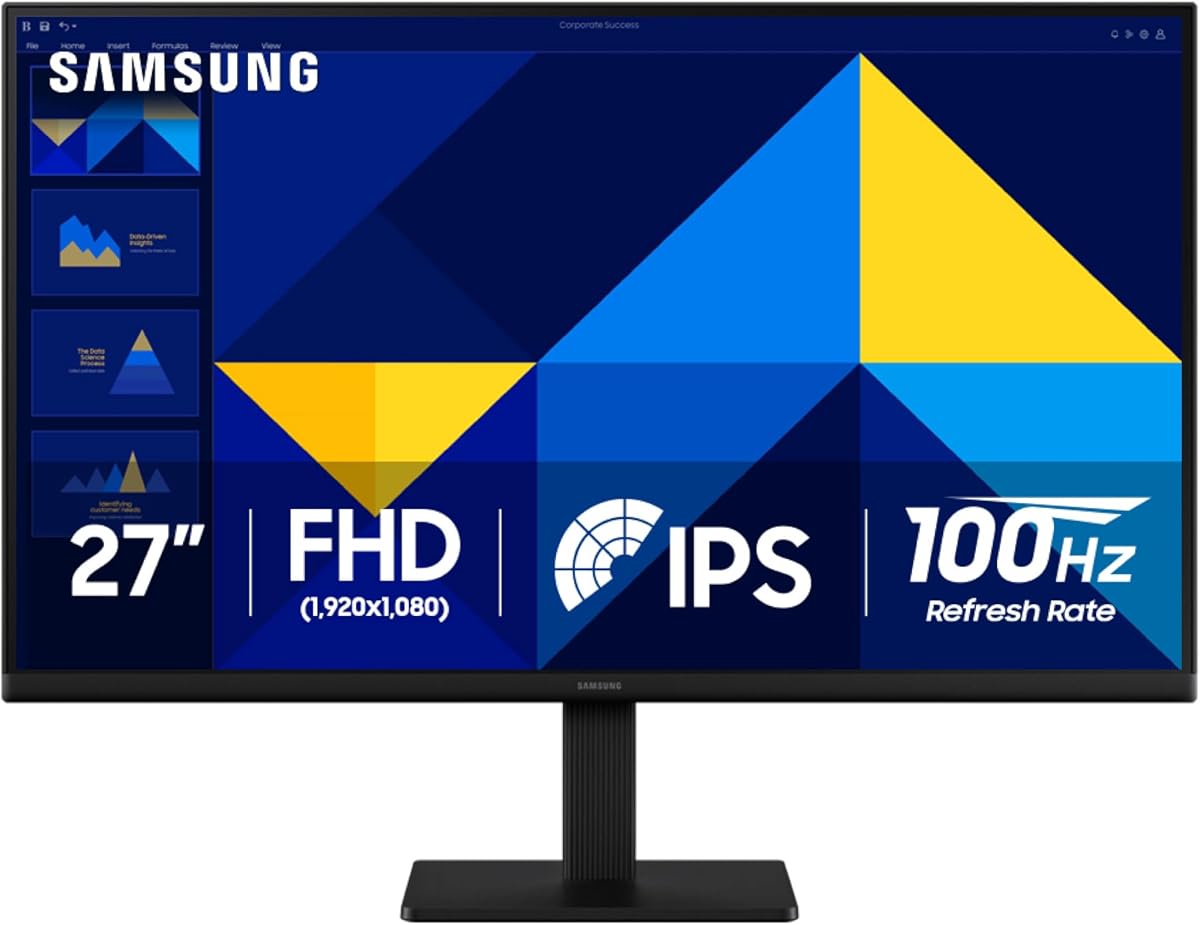
The Samsung Essential S30GD is a straightforward 27-inch IPS monitor designed for users who want a larger, more modern desktop without moving into a high-resolution professional display. Its 4.5 rating indicates a favorable user response, and the 100Hz refresh rate gives menus, web pages, and document windows a noticeably smooth feel. The IPS panel also maintains bright, consistent colors as the viewing angle changes.
We may earn a commission when you buy through this link, at no additional cost to you.
The 27-inch diagonal offers a more useful balance than a compact 24-inch model when a lawyer needs to keep an email or calendar column visible beside a document. Its slim bezels create a clean appearance and can make a single display feel less enclosed. The panel is especially appropriate for general productivity because reduced blue light and screen flicker help support comfort during long sessions.
Samsung also includes game-oriented adjustments that can be useful outside the office. Game Mode and customizable color and contrast settings provide some control over how darker interface elements and media appear. These features are not the primary reason to choose the display, but they broaden its usefulness for a lawyer who also uses the computer for media consumption during downtime.
The main constraint is the Full HD resolution. A 27-inch panel at 1920 by 1080 can feel less crisp than the same size at QHD or 4K, particularly when reading small annotations, comparing revisions, or displaying dense spreadsheets. The S30GD is still a strong general-purpose option for legal work, offering a generous size and polished IPS viewing experience without a complex setup.
IPS technology is a sensible choice when information may be viewed from different angles, whether that means a colleague pointing to a document or a user shifting position in a shared office. The reduced color washing claimed by the panel helps preserve a consistent appearance across the screen.
At 100Hz, routine desktop interactions can feel more fluid than on a traditional 60Hz display. The improvement is most noticeable during scrolling, moving between large application windows, and presenting smoothly, making it a worthwhile feature for everyday computer work.
We may earn a commission when you buy through this link, at no additional cost to you.
The MNN 15.6-inch portable monitor is aimed at lawyers who work across locations and need more screen space than a laptop can provide. It carries a 4.3 rating and uses a 1920 by 1080 IPS panel with a glossy finish and wide viewing angles. The key advantage is flexibility: it can serve as a second screen during travel, at home, in a conference room, or at a temporary office location.
We may earn a commission when you buy through this link, at no additional cost to you.
Two full-featured USB-C ports simplify connections, with one cable able to carry both power and display signals when the source device supports the required USB-C DisplayPort Alt Mode. The included smart cover protects the glossy screen and doubles as a stand. Copy, extended, second-screen, and portrait modes make it easy to adapt the display to a document, presentation, or reference page.
HDR support can add brighter highlights and deeper color for supported content, while the IPS panel offers broad viewing angles for shared use. The monitor's portable dimensions mean it can slide into a backpack without requiring a large monitor stand or power brick. That makes it especially appealing for attorneys moving between the office, courthouse, client site, and home.
There are clear limits. The 15.6-inch area is smaller than a standard office display, and the 60Hz rate is less fluid than higher-refresh alternatives. Glossy construction can also produce reflections in bright rooms. The MNN is best viewed as a specialized productivity companion: a portable second screen for quick review, travel, and client presentations rather than a permanent replacement for a larger desk monitor.
When the connected computer supports the necessary USB-C video and power functions, a single cable can handle the display connection and charging. That reduces setup time and avoids carrying a separate power adapter for the portable display, which is particularly helpful before a client meeting or court appearance.
Portrait mode can make a long legal document easier to view as a tall page rather than forcing it into a wide window. The same orientation can support messaging, reference pages, and other workflows where vertical content benefits from additional height.
We may earn a commission when you buy through this link, at no additional cost to you.
The Xebec Tri-Screen 3 is the most specialized portable option in this guide, transforming a compatible laptop into a three-screen workstation with two 13.3-inch displays. Its 4.4 rating reflects a favorable reception, while the single embedded USB-C cable and 60W charging pass-through distinguish it from simpler portable monitors. It is aimed at professionals who need to compare documents, keep reference material visible, and avoid excessive tab switching.
We may earn a commission when you buy through this link, at no additional cost to you.
Legal work often benefits from a wide, parallel workflow: one display may hold a brief, another an evidence or contract comparison, and the laptop screen can remain dedicated to email or a case-management system. The patented tension-fit design holds the two side screens without requiring magnets or adhesive, and the aluminum construction is intended to tolerate repeated packing and travel. A protective case is included for transport.
The single-cable approach is a major convenience. One USB-C connection powers the laptop while driving both extra screens, reducing desk clutter and the number of adapters that must be carried. Texas-based human support and a one-year manufacturer warranty add reassurance for a premium accessory. The product is also marketed toward high-stakes workflows, including case-file review and complex professional multitasking.
Compatibility is the essential caveat. The setup depends on a compatible USB-C connection and adequate host-device support, so a lawyer should confirm the computer's capabilities before purchasing. The combined size and weight of a laptop plus two side displays also occupy more space than a standard monitor. For a lawyer who frequently reviews complex material away from the office, however, the productivity potential can justify the premium design.
A three-screen arrangement reduces the need to repeatedly open, close, and reposition documents. Attorneys can keep the primary draft, comparison version, source material, and communication channels visible at the same time, which can be especially valuable during intensive document review.
The aluminum housing, integrated connection, and included protective case create a more cohesive travel system than a pair of unrelated portable screens. The tension-fit arrangement avoids adhesive or magnetic attachments, simplifying setup and reducing loose accessories.
We may earn a commission when you buy through this link, at no additional cost to you.
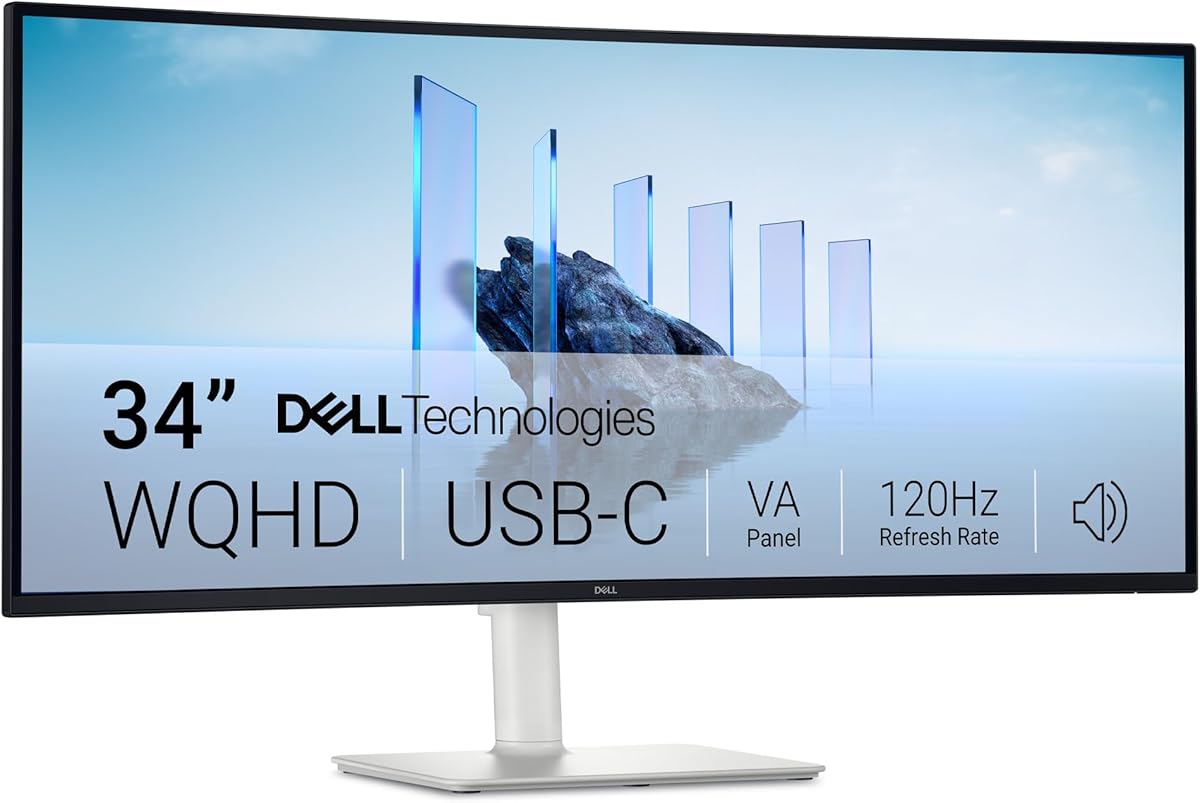
The Dell 34 S3425DW uses an ultrawide format to provide substantially more horizontal workspace than a conventional office monitor. Its 4.4 rating and 34-inch WQHD panel make it a strong candidate for legal research, spreadsheet analysis, litigation timelines, and side-by-side document comparison. A lawyer can position a contract, case notes, and relevant correspondence within one continuous desktop without managing multiple physical monitors.
We may earn a commission when you buy through this link, at no additional cost to you.
The VA panel provides a 3000:1 contrast ratio, which can make dark text and light document backgrounds appear well separated. Color coverage is listed at 99% sRGB and 95% DCI-P3, while HDR readiness adds visual range for supported content. The 120Hz refresh rate and 0.03ms response time contribute to smooth movement, and AMD FreeSync Premium supports tear-free playback when paired with a compatible source.
Connectivity is streamlined through a single USB-C cable with up to 65W power delivery, allowing the display to carry video, data, and charging through one connection. ComfortView Plus is specified to reduce harmful blue-light emissions to 35% or less. Re-engineered speakers add another office-friendly feature, making the screen easier to use as a self-contained workstation.
The trade-off is size. A 34-inch ultrawide requires a generous desk and may be less practical in a compact office or shared home space. VA panels can also show slight dark smudging in some environments, a consideration for users who are especially sensitive to panel characteristics. Even so, for anyone who regularly works with multiple documents, the S3425DW offers an efficient alternative to a two-monitor desk.
Ultrawide resolution reduces the friction of comparing two full-size documents because both can remain visible without dividing the desk into separate screens. This is particularly helpful for redline comparisons, contract negotiations, and reviewing the relationship between a brief, chronology, and supporting record.
USB-C power delivery can reduce the number of cables connected to the workstation. A lawyer can move between a laptop-based mobile setup and a desk-based legal environment more easily while keeping the display, charging, and data workflow relatively streamlined.
We may earn a commission when you buy through this link, at no additional cost to you.
The Samsung Essential S3 S36GD adds a gentle 1800R curve to a familiar 27-inch Full HD monitor. Its 4.5 rating suggests that many users appreciate the combination of a modern appearance, smooth 100Hz operation, and a more immersive viewing shape. For a lawyer working alone on long document sessions, the curve can bring the edges of the display closer and help limit peripheral distractions.
We may earn a commission when you buy through this link, at no additional cost to you.
The design is not intended to transform every workflow. Curved screens can make some multi-window arrangements less predictable, and the Full HD resolution does not offer the fine detail of QHD or 4K models. Nevertheless, for one large application at a time, the broad field can feel more immersive than a flat screen. It may be especially appealing in a private office, home study, or focused review room.
The 100Hz refresh rate reduces lag and motion blur during scrolling and video playback. TÜV-certified advanced eye-comfort technology works to minimize blue light and screen flicker, both useful considerations during extended reading. Adjustable game settings and Game Mode add further control over contrast and color, although these features are secondary for standard legal applications.
Direct device connectivity adds flexibility, allowing compatible computers and peripherals to be connected through the monitor. Overall, the S36GD is a sound choice for users who value a conventional 27-inch format, smooth motion, and an immersive curve more than fine text detail or a completely flat workspace. It provides a comfortable middle ground for research, correspondence, and document reading.
A curved panel can make the edges feel less visually distant than they do on a flat monitor. The effect may help users focus on a central document, although the benefit depends on desk depth, viewing distance, and personal preference.
TÜV-certified blue-light and flicker reduction supports the display's suitability for long sessions. Combined with the 100Hz refresh rate, these features make it easier to spend extended periods reading contracts, reviewing research, and editing written work.
We may earn a commission when you buy through this link, at no additional cost to you.
The Fagomfer S6 is a portable screen extender that can be configured into several workstation arrangements, including a standalone display, a folding single-screen setup, or a three-screen extension. Its 4.1 rating is the lowest among the products reviewed, but the feature set directly targets users who need flexible screen real estate across offices, hotel rooms, and business trips. The design is explicitly compatible with legal and financial workflows.
We may earn a commission when you buy through this link, at no additional cost to you.
The 1920 by 1080 panel offers a familiar 16:9 canvas, 300-nit brightness, a 1000:1 contrast ratio, and an 86% NTSC color gamut. These specifications are more than sufficient for office documents, web research, presentations, and routine case-management software. Functional controls allow screen parameters to be adjusted when needed, while expansion and mirroring modes support different working patterns.
Compatibility is broad. The extender can work with laptops, desktop computers, mini PCs, game consoles, and systems running Windows, macOS, Home, or Linux. A special custom cable functions as a hub for devices whose ports do not directly support the required dual-display arrangement. The magnetic assembly and included sleeve make it easier to carry, and the foldable rear stand can adjust by 90 degrees.
The compromises are worth noting. The 86% NTSC specification is less ambitious than the color capabilities listed for some desktop alternatives, making it better suited to general office work than color-critical professional tasks. Setup may also require attention to host compatibility and the correct hub cable. For a lawyer who wants a flexible three-screen travel arrangement at a more conventional desktop-monitor resolution, the S6 is a practical option.
The detachable design and included stands allow the display to be arranged as a single extension, a portable screen, or part of a larger multi-screen setup. That flexibility is valuable when a lawyer wants a travel display but also needs to configure a more permanent workstation at home or in the office.
The included hub cable broadens compatibility with computers that cannot directly drive the desired dual-display arrangement. Prospective buyers should still verify their device's outputs, because operating-system support and physical port configuration are not the same thing.
We may earn a commission when you buy through this link, at no additional cost to you.
The Samsung ViewFinity S7 S71H is the strongest dedicated desktop monitor for lawyers who need unusually crisp text and enough resolution to preserve document structure on screen. Its 4.6 rating reflects strong user approval, while the 3840 by 2160 4K UHD panel delivers three times the pixel count of Full HD. That extra density makes annotations, footnotes, contract language, and complex diagrams more legible.
We may earn a commission when you buy through this link, at no additional cost to you.
The 27-inch form factor balances screen area and physical footprint more effectively than a very large 4K display. High pixel density also makes it well suited to applications that present information in multiple panels, such as a case-management system beside a document viewer, web research, and calendar. HDR10 adds a claimed gamut of more than one billion colors, with darker blacks and brighter highlights for supported media.
Connectivity includes both HDMI and DisplayPort, which makes it straightforward to connect to office desktops and professional laptops. Eye Saver Mode, certified by TÜV, reduces blue light and prevents screen flickering, supporting the monitor's suitability for long reading sessions. Game Mode can instantly adjust color and contrast, adding versatility for occasional entertainment or media use.
Proper system configuration is important. A 4K Windows environment usually benefits from appropriate scaling, and the connected computer should be capable of driving the intended resolution. Even with that consideration, the S71H is an excellent all-around legal workstation display for users who prioritize fine detail, a professional size, and flexible connectivity over a curved or ultrawide format.
High pixel density makes small legal text and marginal notes easier to inspect without requiring a larger physical panel. The 4K canvas is especially useful when the user wants to retain a clear document while keeping supporting applications visible in adjacent windows.
IPS technology supports consistent viewing angles, while HDR10 broadens the contrast and color range for compatible content. These qualities are useful for reviewing presentation materials, visual evidence, and media in addition to standard office documents.
We may earn a commission when you buy through this link, at no additional cost to you.
The Samsung ViewFinity S6 S61F offers a practical middle ground between a Full HD office monitor and a 4K professional display. Its 4.3 rating and QHD resolution of 2560 by 1440 give lawyers more working space and finer text than the standard Full HD format, while preserving a familiar 27-inch size. The result is a versatile display for document review, research, and administrative work.
We may earn a commission when you buy through this link, at no additional cost to you.
The 100Hz refresh rate keeps scrolling and window transitions smooth, and the included Game Mode provides basic optimization when visual content needs additional contrast. TÜV-certified Eye Saver Mode focuses on reducing eye strain during extended use, which is important for attorneys working through long documents, discovery materials, or detailed correspondence.
Its ergonomic stand is a major practical advantage. Height, tilt, and pivot adjustments allow the panel to be positioned for different users and desk setups. A lawyer can place the top of the screen near eye level, angle it to reduce reflections, or use pivot when vertical documents are more convenient to read. The monitor also offers HDMI and DisplayPort for broad peripheral compatibility.
It does not include the USB-C power delivery found on some higher-end alternatives, nor does its supplied feature list emphasize HDR. Those omissions do not prevent excellent productivity, but they make it more dependent on a full cable setup. The S61F is best for users who prioritize resolution, adjustability, and eye comfort at a conventional desk.
A 27-inch QHD screen provides useful extra pixels without the footprint of a 34-inch ultrawide. That makes it a strong fit for standard office desks where a lawyer wants to compare documents but still needs room for a keyboard, notebook, legal pad, and paperwork.
Height and pivot support let the user adapt the screen to different postures and tasks. Those adjustments are more meaningful in a professional setting than decorative design features because they can reduce strain during long, repetitive document-review sessions.
We may earn a commission when you buy through this link, at no additional cost to you.
The Philips 241V8LB is a compact 23.8-inch monitor that places particular emphasis on comfortable document viewing. Its 4.6 rating is among the strongest in the group, and the combination of a 100Hz refresh rate, VA panel, and 16.7 million colors gives it a practical balance for everyday legal work. The display is particularly suitable for users who spend much of the day reading contracts, pleadings, research, and correspondence.
We may earn a commission when you buy through this link, at no additional cost to you.
EasyRead mode is the defining feature. It provides a more paper-like presentation intended to make lengthy documents easier to read, while VA technology produces brighter whites, deeper blacks, and smoother gradients than many general-purpose panels. The 178-degree viewing angles help maintain consistent colors when a colleague or client stands beside the desk to review information.
The three-sided virtually bezel-free design gives the monitor a clean appearance and makes it easier to incorporate into a multi-monitor arrangement. Flicker-free operation reduces visible screen flicker, while the 100Hz refresh rate creates smoother movement. VESA compatibility also provides flexibility when the user wants to reposition or mount the display.
The 23.8-inch footprint and Full HD resolution keep the monitor compact, but they also limit the amount of information visible at once. It is best for attorneys who primarily read one document at a time, value a straightforward setup, and want a dedicated workspace without a large or complicated display. Its document-oriented features make it a sensible alternative to a higher-resolution general monitor.
EasyRead mode is designed to reduce the glare and brightness commonly associated with long digital document review. It can make dense pages feel more familiar and may be especially useful for attorneys who spend many hours reading pleadings, contracts, and discovery materials.
The narrow three-sided bezel helps the 23.8-inch display fit neatly into a two-screen setup. VESA support adds mounting flexibility, allowing the user to reclaim desk space or align multiple displays more effectively.
We may earn a commission when you buy through this link, at no additional cost to you.
The right legal monitor depends on how and where the work happens. Resolution, physical size, ergonomics, eye comfort, connectivity, and portability should be weighed against the user's typical documents, workspace, and need to move between devices.
Resolution determines how much information can fit on the screen and how finely small text can be rendered. Full HD at 1920 by 1080 is adequate for a single-document workflow on a 23.8-inch monitor, but a 27-inch QHD display provides more useful workspace and finer detail without becoming excessively large. The Samsung ViewFinity S7 S71H goes further with 4K UHD, making it preferable for dense contracts, side-by-side research, small annotations, and professional applications. High resolution also benefits from operating-system scaling, so users should confirm that their computer and software can present text at a comfortable size.
Screen size is about usable workspace, not merely a larger image. A 23.8-inch display is easy to place and generally leaves more physical desk space for a laptop, legal pad, and documents. A 27-inch monitor offers a meaningful increase in area for separate application panes. The Dell 34 S3425DW goes further with an ultrawide format that can show two substantial documents side by side, while the Xebec Tri-Screen 3 creates three separate panels on a laptop. A lawyer who reviews documents continuously may value area more than minimal desk space, whereas a user who travels or works in a compact office may prefer a portable 15.6-inch option.
A monitor should be easy to position for the user's height, chair, desk, and preferred viewing distance. Height adjustment is particularly valuable for creating a consistent relationship between the top of the display and eye level. Tilt helps reduce reflections, while swivel and pivot support quick repositioning and vertical workflows. The Dell 24 Plus S2425HSM supports height, tilt, pivot, and swivel, while the Samsung ViewFinity S6 S61F includes tilt, pivot, and height adjustments. For long document sessions, these features may deliver more daily comfort than a faster refresh rate.
Legal professionals often spend extended periods reading dense on-screen material. Blue-light reduction, flicker-free operation, and consistent color rendering can improve comfort, particularly across a full workday. The Dell 24 Plus S2425HSM and Dell 34 S3425DW use TÜV-certified eye-comfort features, while the Samsung Essential S30GD, Essential S3 S36GD, and ViewFinity S6 S61F provide reduced-blue-light and flicker-related protections. The Philips 241V8LB adds EasyRead mode for a more paper-like document presentation. These features should support, rather than replace, sensible breaks and an ergonomic workstation.
The connection strategy should match the lawyer's computers and working habits. HDMI and DisplayPort are common desktop options, while USB-C can provide a cleaner laptop setup when the source and monitor support compatible video, data, and charging functions. The Dell 34 S3425DW offers up to 65W power delivery over USB-C, and the MNN portable monitor can carry power and display signals through a compatible USB-C connection. The Xebec Tri-Screen 3 is designed around one embedded cable and 60W pass-through charging. Users should check operating-system support, port capabilities, adapter requirements, and whether their preferred charging standard is supported before buying.
Attorneys who appear in court, meet with clients, or travel between offices need a display that packs easily and connects quickly. The MNN 15.6-inch monitor is compact, weighs little enough for routine carrying, and includes a protective cover that doubles as a stand. The Xebec Tri-Screen 3 provides two displays and a protective travel case, making it a more elaborate mobile workstation. The Fagomfer S6 offers several detachable arrangements and includes a sleeve. Portability should be balanced against screen size, host-device compatibility, and the extra weight created by multiple panels.
Legal documents are usually judged for content rather than color, but accurate rendering still matters when reviewing visual evidence, spreadsheets, presentation slides, and media. IPS panels offer consistent colors across broad viewing angles, which helps when a colleague or client stands beside the screen. The Samsung Essential S30GD and ViewFinity S7 S71H use IPS technology, while the Dell 34 S3425DW offers a VA panel with wide color-gamut claims and strong contrast. The Fagomfer S6's 86% NTSC specification is sufficient for general office work but less ambitious for color-sensitive tasks.
Refresh rate influences how smoothly scrolling, window movement, and video appear. A 60Hz panel remains acceptable for conventional document work, but 100Hz models provide a noticeably smoother desktop experience. The Dell 24 Plus S2425HSM goes further with 144Hz, a 1ms MPRT specification, and AMD FreeSync support. The Dell 34 S3425DW pairs 120Hz with FreeSync Premium, while the Samsung Essential S30GD, Essential S3 S36GD, ViewFinity S6 S61F, and Philips 241V8LB use 100Hz. These characteristics can make long sessions feel more fluid, although resolution and ergonomics usually matter more to legal productivity.
Begin by positioning the display directly in front of the user, with the center or upper third near eye level and enough distance to view a full document comfortably. Apply Windows or macOS scaling before increasing the operating system's smallest text setting, and adjust brightness so white document pages remain bright without forcing the user to squint. A clean, neutral desk and an appropriately sized keyboard help reduce eye and neck strain during extended drafting and review.
For a portable or multi-screen arrangement, connect the display before opening confidential case files or beginning a call. Confirm the extended or mirrored display mode, then arrange the screens according to workflow: primary document in the center, reference material beside it, and communication applications on the laptop or outer panel. Use portrait orientation for long pages when helpful, and secure the portable cover or folding stand so the screen cannot shift during travel.
Clean the panel with a soft, lint-free microfiber cloth and avoid spraying liquid directly onto the display. Power the monitor down before moving a portable model, route cables without sharp bends, and protect the screen from pressure inside a bag. Periodically clean vents, confirm that adjustable joints remain firm, and recheck alignment if the desk or chair position changes. These simple habits help preserve image quality, ergonomic comfort, and dependable operation.
QHD is an excellent balance for most 27-inch legal workstations because it offers finer text and more workspace than Full HD without requiring a large panel. A 4K display is even sharper and better suited to comparing dense documents or keeping several applications visible. Full HD remains perfectly workable when the primary requirement is a compact, straightforward monitor for reading one document at a time.
An ultrawide monitor can reduce tab switching by placing a brief, contract, and supporting research side by side on one desktop. The Dell 34 S3425DW offers useful horizontal space along with USB-C connectivity. It does require a wide desk, however, and some users may prefer two conventional screens for independently repositioned applications.
The best size depends on desk depth, distance from the screen, and whether the user reads one document or several applications at once. A 24-inch model offers a compact baseline, while a 27-inch QHD or 4K display provides a more capable professional workspace. A portable 15.6-inch model can serve as a travel companion but should not automatically replace a larger primary screen.
Usually, yes, provided the computer's operating system, graphics output, and applications support the intended extended-display configuration. The MNN and Fagomfer options are designed for common laptop and desktop environments, while the Xebec system requires a compatible USB-C host. Users should check display-adapter requirements and test the arrangement before relying on it for a hearing or client presentation.
Neither is essential for most word-processing, research, and case-management work, though both can improve the experience. HDR adds visible impact for supported visual content, while a higher refresh rate makes scrolling and window movement smoother. A sharp panel, comfortable ergonomics, and sufficient screen area usually deliver more practical value.
Begin with a display that offers blue-light reduction, flicker control, and an ergonomic stand, then adjust brightness and scaling to match the room and your viewing distance. The Philips EasyRead mode is designed for a more paper-like document view, while several Dell and Samsung models include certified eye-comfort features. These technologies cannot replace regular breaks, distance changes, and an ergonomically arranged workstation.
A single large display offers a cleaner desk and can make side-by-side document comparison straightforward. Multiple screens provide more independent workspace and allow communication, research, and drafting applications to remain visibly separated. Portable triple-screen systems are especially convenient when mobility matters, but they are bulkier and require more careful compatibility checks.
Confirm the monitor's resolution and refresh-rate support, the available ports on the computer, and any required power or display adapters. For USB-C setups, check video-mode and charging compatibility because not every USB-C port performs the same functions. Update the display driver and operating system, then set the proper resolution and scaling before arranging the workspace.
The Dell 24 Plus S2425HSM is the strongest all-around value for lawyers who want smooth performance, integrated speakers, and unusually broad stand adjustment without moving to a high-resolution display. The Samsung ViewFinity S7 S71H is the top choice for exceptionally crisp text and professional 4K detail, while the Xebec Tri-Screen 3 leads the portable premium category by creating a complete three-screen workstation from one cable.
The right choice ultimately depends on workload. Dense document analysis favors the ViewFinity S7's 4K resolution or the Dell 34's wide canvas, while mobile and client-facing work may favor the lighter MNN display or one of the portable extender systems. Conventional 23.8- and 27-inch monitors remain sensible when desk space, simplicity, and focused reading matter more than maximum screen area.
Before ordering, verify compatibility, ergonomics, desk clearance, and current product specifications. Product features and marketplace conditions can change, so readers should check current listings and prices at the time of purchase, then select the display that best matches their actual legal workflow rather than simply the largest or most technically advanced option.