
Brother P-Touch PT-D610BT
4.5Editor score
Bluetooth and USB connectivity
Up to 90 stored label designs
Two-line color preview display
175 included business templates
Finding a label printer for Linux is more complicated than choosing a model for Windows or macOS because driver availability, distribution support, and application compatibility can vary substantially. The most important factors include native driver support, reliable USB operation, thermal print quality, calibration, label media handling, and the printer’s ability to integrate with shipping or inventory software.
We compared ten label printers using the supplied specifications, with particular attention to the one model that explicitly lists Linux drivers. We also examined resolution, print speed, supported media widths, connection methods, platform support, label design options, and ease of setup. The list includes both dedicated shipping printers and more compact label makers for organization, retail, and home-office tasks.
Each review explains how the printer fits a Linux workflow, what its strongest capabilities are, and where compatibility limitations may arise. The three highlighted selections emphasize explicit Linux support, a useful combination of connectivity and shipping features, and a compact lower-cost option. As with all Amazon listings, ratings, driver updates, and prices can change over time.
4.5Editor score

4.0Editor score

4.4Editor score
As an Amazon Associate we earn from qualifying purchases.
The comparison below highlights each printer’s strongest documented features while keeping Linux compatibility central. Only explicitly documented Linux support is treated as confirmed; users of other models should verify current drivers and application compatibility with their chosen Linux distribution.


The iDPRT SP310 is the clearest choice in this guide for Linux users because its supplied specifications explicitly call for drivers tailored to Windows, macOS, Linux, ChromeOS, and Raspberry Pi. It has a 4.0 rating and is positioned as a professional desktop thermal label printer. Rather than relying on vague Bluetooth claims, it emphasizes a stable, plug-and-play USB connection for uninterrupted desktop printing.
We may earn a commission when you buy through this link, at no additional cost to you.
Its 203 DPI head produces clear text, barcodes, and other common shipping information, while the listed speed of four inches per second can handle as many as 80 two-by-three-inch labels per minute. The open media system accepts labels from one to 3.35 inches wide, and the built-in smart sensors detect label size and gap boundaries. A one-touch calibration procedure after changing media helps prevent skipped or misaligned output.
The principal limitation is media width. It cannot natively accept a standard 4.1-inch-wide 4×6 shipping label, so buyers who regularly print carrier packages may need a different model. HereLabel, the listed design application, is specifically provided for Windows and macOS, which means Linux users may need to generate compatible files in another application before transferring them. The unlocked media system and explicit Linux driver support nevertheless make it unusually practical for the target platform.
This is the strongest recommendation for Linux users who need dependable USB printing, regular inventory or parcel labels, and a device that supports common third-party media. Choose it when the required label width falls within its 1-to-3.35-inch range and you can design or export files in a format the driver accepts. For routine 4×6 shipping-label workloads, move up to one of the wider dedicated shipping printers and verify its driver availability first.
Explicit Linux drivers remove much of the guesswork associated with a new Linux installation. Users still need to obtain the correct driver, install it through the distribution’s package or device workflow, and confirm that the printer appears in the system print queue.
The smart sensor module and one-touch calibration are valuable when switching between gap labels, product tags, and address media. Calibration helps align the print area to detected boundaries, reducing blank feeds and labels that print across the gap.
We may earn a commission when you buy through this link, at no additional cost to you.
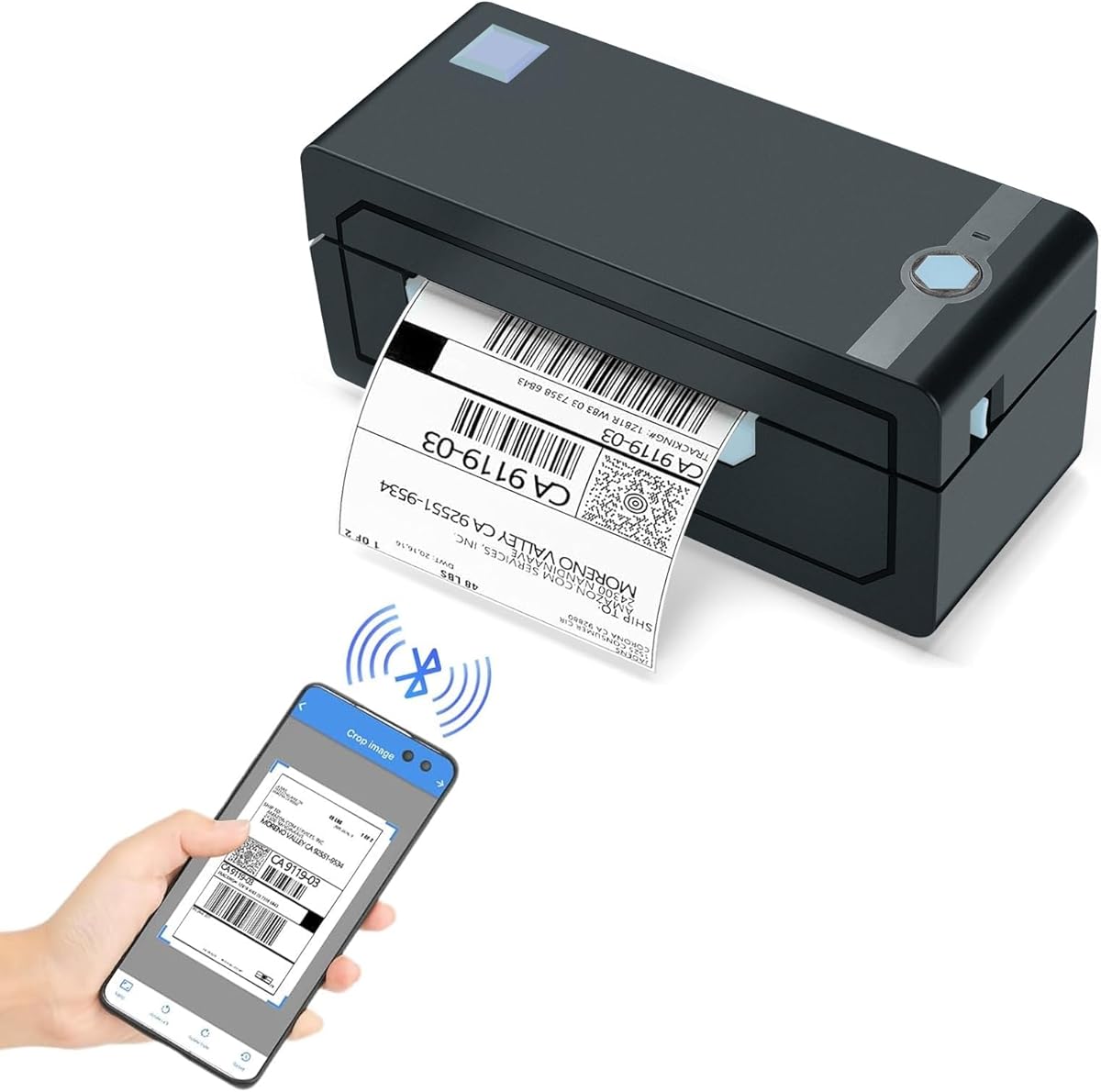
The JADENS Bluetooth Shipping Label Printer combines a 4.4 rating with support for standard 4×6 media, making it a capable shipping-label option for small businesses. Its 203 DPI Japanese thermal print head produces clear output without ink or toner, and the printer accepts both fanfold and roll labels. That makes it versatile for parcels, warehouse stock, marketplace orders, and product identification.
We may earn a commission when you buy through this link, at no additional cost to you.
Bluetooth printing is available for Windows 8 or later and Mac, while Android and iOS users must print through the Jadens printer app. A USB connection supports Windows 7 and later and Mac OS 10.9 and later. The printer also works with shipping services and marketplaces including ShipStation, Shippo, ShipWorks, eBay, Amazon, Shopify, and others, giving it a broad application-oriented feature set.
Linux is the uncertainty. The supplied information does not explicitly list a Linux driver or confirm Linux support, and the mobile Bluetooth path depends on an app designed for Android and iOS. A Linux owner should therefore treat this as a USB-based prospect rather than assume plug-and-play compatibility. The included driver and instruction resources are helpful, but their operating-system coverage should be checked before purchase.
The JADENS is an attractive option for a user who values wireless phone printing, 4×6 capacity, and broad shipping-platform compatibility. It may also work through a shipping service that generates print-ready PDF labels, but that workflow still depends on the Linux software’s ability to send the document to the printer. For confirmed Linux support, the iDPRT SP310 remains the safer recommendation.
Accepting roll and fanfold labels gives the printer broad practical value. The supported width range includes common 4×6 shipping labels as well as narrower address, barcode, and product labels.
Bluetooth can simplify mobile order processing, although phone users must use the vendor app rather than direct Bluetooth pairing. Linux users should focus on USB and confirm driver availability.
We may earn a commission when you buy through this link, at no additional cost to you.
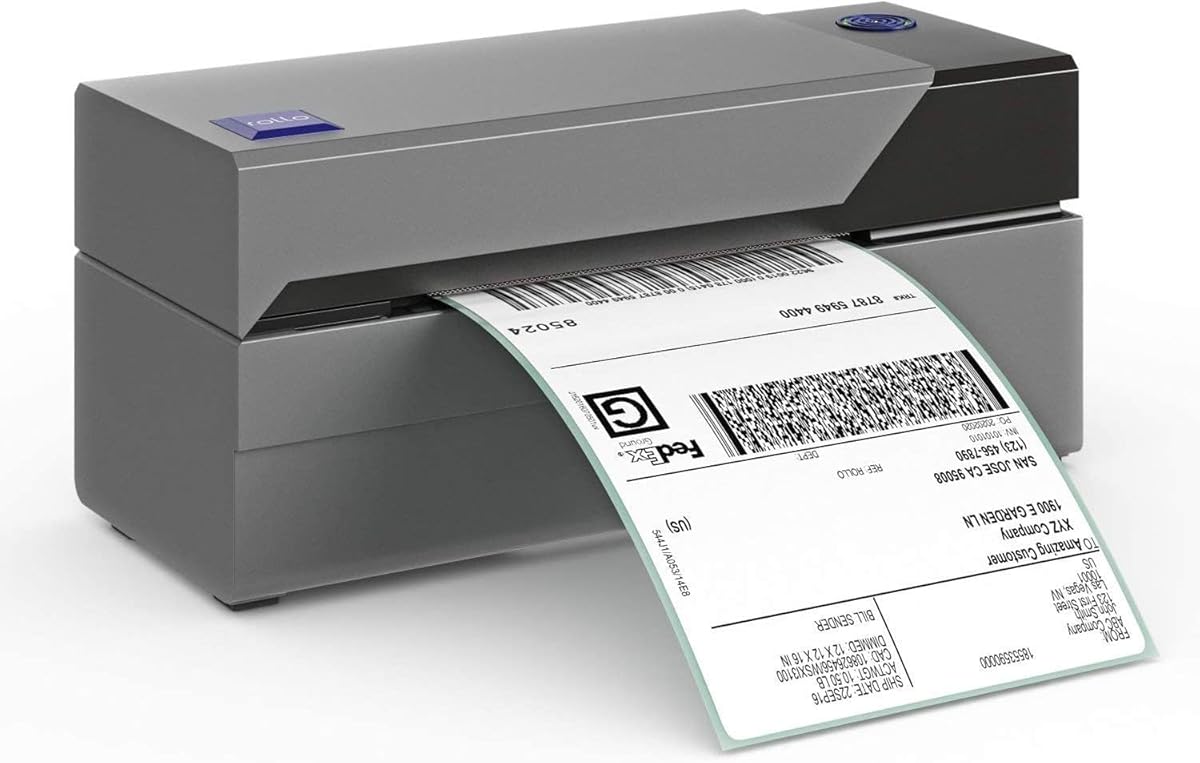
The Rollo USB Shipping Label Printer has a 4.6 rating, the highest among the ten products listed, and targets commercial shipping tasks. It prints at 150 mm/s, described as one 4×6 label per second, using a 203 DPI direct thermal head. The printer supports shipping labels, warehouse labels, barcodes, and stickers without ink or toner.
We may earn a commission when you buy through this link, at no additional cost to you.
Its USB design is straightforward for desktop users, and the listed operating systems include Windows XP and later and Mac 10.9 and later. The printer works with major carrier and fulfillment environments such as FedEx, UPS, USPS, ShipStation, ShippingEasy, Shippo, ShipWorks, Amazon, Shopify, Etsy, and eBay. The custom label maker expands the use case to QR codes, product labels, thank-you stickers, and business labels.
The meaningful limitation is that Linux compatibility is not explicitly stated. A Linux system may still be able to print through CUPS, a browser-based shipping service, or a print-ready file, but the user must confirm that the correct driver is available and that the shipping platform exports a compatible format. The absence of documented Bluetooth also means it is less attractive for a wireless mobile workflow.
Choose the Rollo when 4×6 output speed, high-volume shipping, and ecosystem support matter most, and you are comfortable validating Linux integration. For a small seller who can use the vendor’s supported desktop environment, it is a powerful thermal printer. For a guaranteed Linux path, the iDPRT SP310 has the stronger documented driver story, though it accepts narrower media.
A listed speed of one 4×6 label per second is well suited to processing batches of online orders. The direct thermal process also removes the need for ink and toner replenishment.
The same device can create barcodes, QR code stickers, thank-you labels, and name or product labels. That makes it a general-purpose output device for inventory and packaging workflows.
We may earn a commission when you buy through this link, at no additional cost to you.
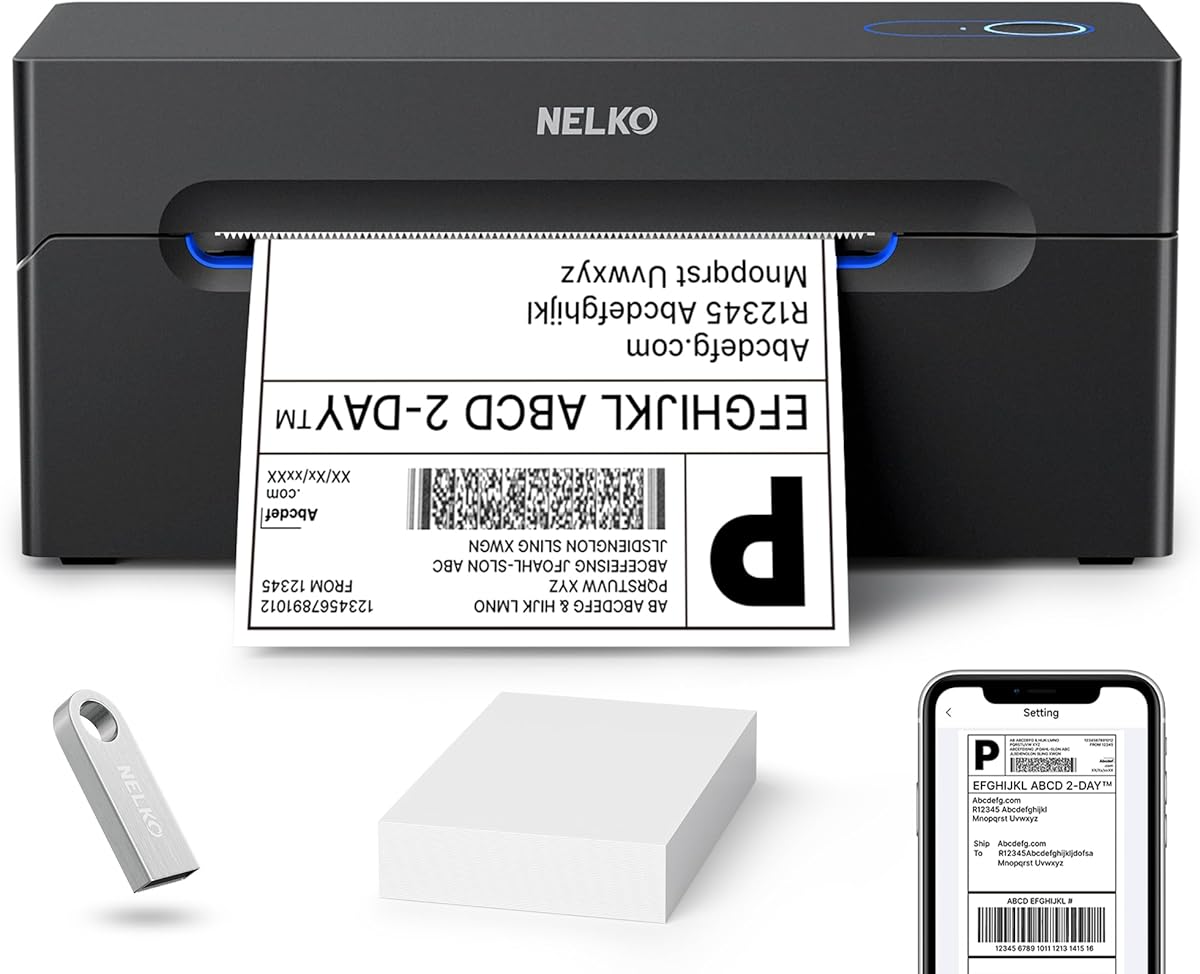
The Nelko Bluetooth Thermal Shipping Label Printer is a compact 4×6-focused model with a 4.3 rating. It prints at 150 mm/s, with a stated capacity of up to 72 four-by-six labels per minute, and uses a 203 DPI head. Both fanfold and roll labels are supported across a width range of 1.54 to 4.1 inches.
We may earn a commission when you buy through this link, at no additional cost to you.
The NELKO app provides Bluetooth printing for iOS and Android. Windows 7 and later systems can also print over Bluetooth, and users of M1- or M2-based Macs can install the app for wireless output. USB is available for Windows, Mac, and ChromeOS. The manufacturer states that all Bluetooth-connected devices must use the app rather than connect directly.
For Linux, the app-based mobile ecosystem does not establish compatibility, and the supplied specification does not list Linux drivers. USB operation may still be possible if the printing system can use a compatible generic driver, but that should be verified rather than assumed. The shipping-platform support also requires labels to be saved as PDF files and then imported into the NELKO app for printing.
This printer is well suited to a mobile-first small business using Android or iOS, particularly when speed and a compact footprint matter. Linux users should choose it only after confirming a working print path with their distribution and preferred shipping application. Otherwise, the iDPRT model’s explicit Linux driver support makes it the more dependable recommendation.
The listed 150 mm/s speed and 72-label-per-minute figure make the Nelko suitable for concentrated order-processing sessions. Its small footprint also helps where space is limited.
The app-centered process works well for mobile users but adds an important compatibility check for desktop Linux. Shipping labels generally need to be saved as PDF files before importing.
We may earn a commission when you buy through this link, at no additional cost to you.
The Brother P-touch CUBE Plus PT-P710BT is a portable label maker rather than a 4×6 parcel printer, and it carries a 4.5 rating. It uses Bluetooth to create and print custom labels up to 24 millimeters, or one inch, wide from supported Apple, Android, or desktop devices. Its built-in Li-ion battery and compact format make it especially useful away from a fixed desk.
We may earn a commission when you buy through this link, at no additional cost to you.
The supplied information identifies three Brother software applications: P-touch Design&Print, Brother iPrint&Label, and P-touch Editor. These provide pre-designed templates, fonts, frames, and symbols for home, office, retail, and crafting work. The package includes black-on-white tape and black-on-glitter-gold tape, along with a USB cable, giving users a usable selection immediately.
The application ecosystem is centered on major desktop and mobile environments rather than Linux, and the supplied data does not confirm a native Linux application. A Linux user may be able to send compatible files through a Bluetooth print service, but the manufacturer’s standard apps remain the best-documented editing route. The one-inch media limit also makes this unsuitable for standard carrier 4×6 labels.
Buy the P-touch CUBE Plus for portable organization, storage-bin labeling, retail products, and craft projects rather than shipping-label production. It is a polished, flexible label maker for a mixed home and office setup. Linux users interested in Brother’s design tools should verify the current compatibility of their chosen application before committing.
Bluetooth connectivity and the built-in battery let users design and print labels away from a desk. The included templates reduce setup time for common household and small-business tasks.
The printer uses Brother TZe tapes in multiple colors, patterns, and finishes. That broad tape selection is useful for visual organization, although it is not interchangeable with shipping-label rolls.
We may earn a commission when you buy through this link, at no additional cost to you.
The Brother QL-700 is built for professional, high-volume labeling and has a 4.4 rating. Its standout specification is a listed speed of up to 93 labels per minute. The printer can produce pre-sized, easy-peel labels with rounded corners, continuous paper, and film for banners and signs up to three feet long.
We may earn a commission when you buy through this link, at no additional cost to you.
Its drop-in roll design and automatic cutter simplify repetitive tasks where a single label or multiple labels may need to be separated after printing. It is suitable for packages, envelopes, file folders, discs, postage, banners, and signs. Because the device uses thermal output, it does not require ink or toner.
The supplied information does not identify Linux compatibility, and the focus is monochrome professional output rather than modern app-driven shipping workflows. A Linux user should investigate the available CUPS package and Brother driver availability for the exact distribution. Print layouts may also require design software that runs on another system or a command-line label workflow.
The QL-700 is an excellent choice for offices, warehouses, mailrooms, and anyone producing large batches of monochrome labels on a consistent basis. It is less suitable for users who need a dedicated 4×6 e-commerce shipping printer or graphical color output. For a Linux deployment, confirm driver support before purchase, but its speed and cutter make it one of the strongest productivity options here.
The 93-label-per-minute figure gives the QL-700 an advantage in high-volume offices and fulfillment environments. Automatic cutting further reduces manual handling between print jobs.
Support for continuous paper and film extends the device into banners, signs, and specialty media. The print head remains monochrome, so the output is best suited to text, codes, and simple graphics.
We may earn a commission when you buy through this link, at no additional cost to you.
The Brother QL-570 is a professional label printer with a 4.4 rating and a 300 by 600 DPI resolution. That higher resolution is its defining feature, producing sharp text and imagery for home or business labels. It also prints up to 68 labels per minute, providing solid throughput without reaching the QL-700’s maximum rate.
We may earn a commission when you buy through this link, at no additional cost to you.
P-Touch Label Creation software is included for customized labels. The printer is aimed at users who need more detail than a standard direct thermal shipping printer may provide, especially for printed graphics, small type, or carefully designed product identification. The included two-year limited warranty also adds reassurance for regular business use.
Linux support is not stated in the supplied specifications, so compatibility should be verified before purchase. As a wired professional device without documented Bluetooth, it is most naturally used as a fixed workstation printer. The included design software and its required operating-system support should also be reviewed if the Linux workflow depends on proprietary editing tools.
Choose the QL-570 when print detail, established Brother software, and professional throughput are priorities. It is a particularly good fit for offices, inventory teams, and product labeling where sharp monochrome output matters. Linux users should check for a current package or driver, while buyers needing immediate high-volume output may prefer the faster QL-700.
A 300 by 600 DPI print head supports crisp text, detailed imagery, and legible small labels. It is valuable when designs contain more visual information than a typical shipping label.
The QL-570 combines a respectable speed of up to 68 labels per minute with a two-year limited warranty. It is designed for dependable desktop use rather than portable, mobile printing.
We may earn a commission when you buy through this link, at no additional cost to you.
The SUPVAN T50M Pro is a compact Bluetooth label maker with a 4.5 rating and three included tapes. It prints labels from three-quarter to two inches wide, making it useful for storage bins, bottles, jars, food containers, office supplies, and small-business packaging. It is a flexible organization tool rather than a high-volume shipping printer.
We may earn a commission when you buy through this link, at no additional cost to you.
Its app allows users to add images from a phone, tablet, or computer and customize labels with more than 30 fonts, 50 frames, and 660 icons. The listed editing features are free, require no registration, and include automatic label size recognition. Square, round, address, cable, jewelry, and file labels are among the compatible formats.
As with several other app-centered products, the supplied information does not confirm Linux support. Bluetooth editing appears oriented toward phones, tablets, and PCs through the vendor app, and Linux availability should be checked in the current app and driver documentation. The maximum width also limits its use for full-size carrier labels and large QR codes.
The T50M Pro is a good fit for home organization, schools, crafters, and small businesses that want inexpensive, attractive labels without a subscription. Linux users can consider it for a Bluetooth or print-to-file workflow, but it should not be selected on the assumption of native Linux support. For confirmed compatibility, choose the iDPRT SP310.
The large collection of fonts, frames, and icons supports more decorative labels than a utilitarian shipping printer. Free editing and no registration requirement simplify initial setup.
Support for round, square, address, cable, jewelry, and file labels broadens its use around the home or office. Automatic size recognition helps reduce scaling mistakes when changing media.
We may earn a commission when you buy through this link, at no additional cost to you.
This ETIKEZ Bluetooth Thermal Shipping Label Printer combines a 4.4 rating with a compact footprint and support for standard shipping-label widths. Its 203 DPI head is intended for clear shipping labels, QR codes, and barcodes, while the supported range of 1.57 to 4.1 inches accommodates common 4×6 labels as well as narrower formats.
We may earn a commission when you buy through this link, at no additional cost to you.
Bluetooth printing uses the Labelnize app on Android and iOS 13 or later. Direct Bluetooth pairing is not supported, and computers cannot use Bluetooth. Windows, Mac, and ChromeOS systems connect by USB, after which the driver must be downloaded, the printer added, and printing configured. The supplied setup process is unusually specific, listing each action from scanning the QR code to selecting paper gap and document printing.
Linux is not included in the documented computer compatibility list. A Linux user could test the printer through CUPS or another print manager, but there is no explicit confirmation that a suitable driver is provided. The required USB setup sequence and label-size selection should therefore be considered before purchase. Selecting the correct paper size is particularly important for alignment and scan quality.
This model is well suited to a small business, studio, or home storage area where a large shipping printer would be impractical. It supports major platforms including Amazon, eBay, Shopify, UPS, FedEx, and USPS, and its compact design helps conserve workspace. It earns the budget recommendation for shipping tasks, while the iDPRT remains the safer choice for a confirmed Linux installation.
The printer delivers 203 DPI output across a width range that includes 4×6 labels. Its small footprint makes it practical for home-based sellers and compact fulfillment spaces.
Labelnize provides the mobile printing route, but direct Bluetooth pairing is not available. The app also guides users through paper-gap selection and document printing, reducing guesswork in the mobile workflow.
We may earn a commission when you buy through this link, at no additional cost to you.
The Brother P-Touch PT-D610BT is a business-oriented connected label maker with a 4.5 rating. It can create and print labels through Bluetooth or USB, allowing multiple users to work from computers or mobile devices. Labels can be up to one inch wide, making it appropriate for office, asset, and inventory identification rather than carrier shipping.
We may earn a commission when you buy through this link, at no additional cost to you.
Its design options include 17 fonts, 17 styles, 160 frames, and 900 symbols. A large 20-character, two-line color LCD allows users to preview a label before committing paper to it. The built-in memory stores up to 90 frequently used designs, and an automatic cutter helps streamline repetitive workflows. There are also 175 preloaded business templates for asset management and inventory tracking.
Brother P-Touch Editor expands customization options, but the supplied specifications do not confirm a native Linux application or driver. Because the machine supports USB, Linux compatibility may depend on a current CUPS package or another available driver, which should be verified in advance. Bluetooth could also vary by Linux distribution and Bluetooth stack, especially when the printer is intended to be shared among several devices.
The PT-D610BT is a strong choice for offices, facilities teams, schools, and small businesses that repeatedly print standardized inventory or asset labels. Its preview screen and stored designs are particularly valuable in multi-user environments. Linux users should prioritize driver verification, while users who need full 4×6 shipping labels should choose a dedicated thermal parcel printer instead.
The full-color, two-line display helps users confirm text placement and content before printing. That visibility can reduce material waste and make label design more approachable for occasional operators.
Storing up to 90 commonly used labels allows staff to reprint standard identifiers with little setup. The 175 included business templates further support repeatable asset and inventory workflows.
We may earn a commission when you buy through this link, at no additional cost to you.
Linux compatibility should be the first filter, but media capacity, connection methods, print quality, and intended workload are equally important. Use the following factors to narrow the list before making a final purchase.
A printer may use standard thermal technology and still fail to integrate cleanly with Linux if no suitable driver is available. The iDPRT SP310 is the only product in this guide whose supplied specifications explicitly list a dedicated Linux desktop driver, along with support for macOS, Windows, ChromeOS, and Raspberry Pi. For the other models, check the manufacturer’s current driver archive and your distribution’s CUPS package index before buying.
When checking compatibility, identify the Linux distribution and release, the printer’s exact model, and whether you intend to print from a desktop, a shipping web application, or a command-line tool. A CUPS package alone may not support every model-specific feature, such as media calibration, cutters, or status lights. Confirm that the printer can also be added manually if automatic detection fails.
Prioritize models with explicit Linux documentation. In all other cases, verify the driver and print path instead of assuming that USB operation guarantees full functionality.
Label width determines what a printer can practically produce. Shipping-oriented models such as the JADENS, Rollo, Nelko, and ETIKEZ support widths extending to approximately 4.1 inches, which accommodates standard 4×6 labels. The iDPRT supports 1 to 3.35 inches, making it useful for inventory, folders, return addresses, and smaller shipping formats but not conventional 4×6 media.
The Brother P-touch models also use a narrower one-inch format, while the SUPVAN offers a broader decorative range from three-quarter to two inches. The Brother QL models are designed around their own supported label media. Before purchasing, measure the width of the labels you already use and account for the printer’s calibration and gap-detection requirements.
Choose a label width range that covers current and foreseeable media. Buying for the exact roll width you use today avoids later frustration with unsupported stock.
USB is generally the most predictable option for a Linux desktop, especially for a printer that is permanently connected. Bluetooth can be convenient for mobile workflows, but vendor apps often target Android and iOS rather than Linux. Several products list Bluetooth as a headline feature, yet their desktop app requirements do not establish Linux compatibility.
Consider who will print and from where. A fixed warehouse station often benefits more from stable USB than wireless convenience. A seller moving between packing locations may value Bluetooth, provided the app supports the chosen devices. For a shared office printer, network print management and stable driver installation may matter more than wireless range.
Favor USB for a Linux-first setup unless the seller’s vendor explicitly documents Linux Bluetooth support. Treat app-based mobile printing as a separate workflow rather than a substitute for desktop compatibility.
Most dedicated thermal shipping printers listed here use 203 DPI, which is suitable for readable address text, barcodes, and QR codes. The Brother QL-570 raises the stated resolution to 300 by 600 DPI for detailed monochrome graphics, while the Brother QL-700 reaches up to 93 labels per minute. The Rollo and Nelko claim a speed of 150 mm/s.
Resolution matters when labels contain fine print or graphics, while speed matters when processing many orders. A four-inch-per-second device can produce as many as 80 two-by-three-inch labels per minute, but the actual rate depends on media, file complexity, and workflow. The iDPRT also includes automatic identification and calibration to help keep output aligned.
For typical shipping labels, 203 DPI is generally the practical sweet spot. Choose higher resolution for premium product labels and high speed for sustained fulfillment work, while keeping the workload realistic.
A printer can be technically compatible with Linux yet awkward to use if its design software or shipping application lacks a native Linux release. The iDPRT includes HereLabel for Windows and macOS, while Brother supplies P-Touch tools for its respective products. Other thermal printers rely on a vendor app or shipping platforms that generate print-ready files.
Consider whether you design labels locally, import PDF files, or rely on marketplaces such as Amazon, eBay, or Shopify. Browser-based services may be usable on Linux even when the printer’s own app is not. Command-line tools and print-friendly web pages can also be valuable for automated warehouse workflows.
Check the complete workflow, not only the operating system. A Linux user who designs on another system and prints a compatible file from the Linux desktop may have more options than the driver list initially suggests.
Thermal printers must detect where each label begins and ends. Gap sensors, automatic size recognition, and one-touch calibration help prevent blank feeds, partial prints, and labels that print across gaps. The iDPRT provides an identification and learning module for automatic media detection, while the SUPVAN app includes automatic label size recognition.
Shipping printers that support fanfold labels can use continuous or perforated media, while roll-based products may require a suitable holder or core arrangement. Label width is not the only consideration; the printer must also support the media structure and roll or fanfold format you plan to use.
For frequent media changes, intelligent calibration and clear gap settings are worth more than cosmetic extras. For one fixed media type, a simpler printer may be sufficient.
The right device should fit the space and rhythm of the work. Compact models such as the ETIKEZ and Nelko suit studios, home offices, and small packing areas. Professional desktop models provide faster output, larger media choices, or specialized cutters for sustained operation. Portable Brother label makers are better suited to organization away from a workstation.
A shipping label printer should be placed where media can be loaded without constant obstruction. A home organization label maker should be easy to carry, recharge, and operate through an app. These are very different tasks, and choosing based only on the word “label printer” can lead to the wrong format.
Map the device to its real environment before comparing speed. A larger professional printer offers little benefit if it occupies the only available work surface.
Driver files, setup instructions, troubleshooting videos, and active support can be as important as hardware. The JADENS and Nelko listings specifically mention supplied drivers, instruction videos, and troubleshooting resources. The iDPRT includes an open media approach and cross-platform drivers, while Brother provides established P-Touch creation tools for supported environments.
For Linux, support should include a way to identify the correct driver and recover from media-detection errors. Check whether the manufacturer maintains a downloadable archive and whether the instructions explain calibration, cutter operation, and print settings. A strong warranty can also help, though the Brother QL-570 uniquely lists a two-year limited warranty in the supplied data.
Prioritize brands that provide actionable setup help for the exact model. Better documentation reduces the chance that a Linux user must troubleshoot an unsupported configuration alone.
Begin by confirming that the exact model has a driver available for the Linux distribution and release in use. Download the driver from the manufacturer, install it, connect the printer by USB, and confirm that it appears in the system print queue. For the iDPRT SP310, follow the supplied guidance for the dedicated Linux driver. For any other model, avoid assuming that a generic USB connection is sufficient.
Load the intended roll or fanfold media, make sure the label path is clean and correctly aligned, and set the media width and gap type in the printer or driver. Where supported, run the model’s calibration procedure after changing labels. Print a test page containing ordinary text, a barcode, and a QR code, then inspect the spacing and scan the codes before beginning a large order.
For care, keep the thermal head and platen clean, use the label type and temperature range recommended by the manufacturer, and avoid operating the cutter when no media is loaded. Store unused thermal labels in a cool, dry location and away from direct heat. If output fades, check the print settings and media before assuming the head has failed, and use the supplied troubleshooting materials or manufacturer support for persistent problems.
The iDPRT SP310 is the only product in this guide whose supplied specifications explicitly list a dedicated Linux desktop driver. Its driver support also covers Windows, macOS, ChromeOS, and Raspberry Pi. Linux users interested in other models should verify current driver availability with the manufacturer and their chosen distribution rather than assuming USB compatibility is sufficient.
A thermal printer can work through CUPS when a compatible driver or suitable generic printing method is available. The printer must also be added correctly to the print queue, and its media width, resolution, and gap settings may need manual configuration. A supported driver provides the best chance of preserving calibration, status, and other model-specific functions.
No. USB is usually the most dependable choice for a fixed Linux workstation because it avoids app and Bluetooth-stack complications. Bluetooth can be useful for mobile order processing, but several printers in this list rely on Android or iOS apps. If wireless printing is essential, confirm that both the app and Bluetooth driver support your Linux distribution.
The JADENS, Rollo, Nelko, and ETIKEZ shipping printers support label widths extending to approximately 4.1 inches, which accommodates standard 4×6 media. The iDPRT supports up to 3.35 inches, so it requires narrower labels. The Brother P-touch and SUPVAN products are organization label makers and are not designed around full-size 4×6 shipping rolls.
A shipping platform or PDF-based document can often be printed directly, but dedicated label software provides more control over barcodes, QR codes, and layouts. The supplied information identifies HereLabel for the iDPRT and several Brother applications for the P-touch products. Linux users should check whether their preferred design application runs natively or whether they can export a compatible file.
Calibration teaches the printer where each label begins and ends. Gap sensors detect the space between labels, and automatic or one-touch calibration helps align the print area correctly. This reduces blank feeds, partial output, and printing across gaps, especially when changing between media sizes or from roll labels to fanfold stock.
A 203 DPI thermal head is a common standard for address labels, barcodes, and QR codes because it produces clear output at a practical speed. The Brother QL-570 offers a higher listed resolution of 300 by 600 DPI, which may benefit detailed graphics or very small text. The most important test is scanning representative labels on the intended scanner.
First confirm that the correct media width and gap or continuous setting are selected. Run the printer’s calibration procedure, inspect the label path, and make sure the roll or fanfold media is loaded squarely. Then test a simple document containing text and a barcode. If the problem remains, review the manufacturer’s troubleshooting resources and confirm that the Linux driver and print queue settings match the model.
The iDPRT SP310 is the strongest all-around choice for this guide because it explicitly supports Linux and combines a stable USB connection, 203 DPI output, automatic media detection, and useful print speed. It is especially appropriate for inventory, address, barcode, and smaller parcel labels. Its inability to accept a full 4.1-inch-wide label is the main consideration before selecting it for standard shipping labels.
For users who need 4×6 media, the JADENS, Rollo, Nelko, and ETIKEZ provide the required width range, but Linux support should be confirmed before purchase. The Rollo stands out for its stated speed and 4.6 rating, the JADENS for broad media and platform support, the Nelko for mobile use, and the ETIKEZ for a compact footprint. Brother and SUPVAN options are better suited to organization, product identification, and polished desktop label creation.
Before ordering, check the current driver situation, shipping or design application, label dimensions, and media format for the exact Linux system in use. Amazon ratings and product details can change, as can availability and pricing. Comparing those current details against the documented capabilities will help ensure that the selected printer remains a practical long-term addition to a Linux workflow.