
Dell Pro Laptop Docking Station WD25
4.5Editor score
100W host power delivery
Up to four high-res displays
Flexible commercial IT management
Our expert guide compares 10 high wattage docking stations by charging power, display support, ports, connectivity, and compatibility for productivity
A high wattage docking station can turn a compatible laptop into a powerful desktop workstation, but charging headlines alone do not tell the whole story. Display capacity, data-transfer speeds, wired networking, USB expansion, cooling, and operating-system support can be just as important when your work involves multiple screens, fast storage, or demanding peripherals.
This guide compares 10 high wattage docking stations using their published specifications, including host power delivery, port selection, display support, network speed, and compatibility. It covers Thunderbolt 4, Thunderbolt 5, USB4, DisplayLink, and conventional USB-C designs so readers can find a dock suited to a particular laptop and workflow.
Each listing identifies the feature that makes that model particularly useful and also notes limitations that could affect compatibility. Product configurations and current prices can change, so readers should verify the latest specifications, included accessories, operating-system requirements, and retailer details before purchasing.
4.5Editor score

4.3Editor score

4.3Editor score
The comparison below places charging capacity alongside display modes, expansion ports, and host compatibility. These distinctions matter because high wattage alone does not guarantee that a dock will support the number of screens, peripherals, or operating systems used in a particular workspace.


The Dell Pro WD25 is a business-oriented USB-C dock with a 4.5 rating, 100W host charging, and native support for as many as four high-resolution displays. It targets users who want a tidy single-cable workstation without paying for the most advanced Thunderbolt platform. Its strongest combination of charging, display flexibility, and manageability makes it an appealing general-purpose option.
We may earn a commission when you buy through this link, at no additional cost to you.
Power delivery of up to 100W suits mainstream Dell AI PCs and compatible non-Dell PCs, allowing a docked laptop to receive substantial power through its USB-C host connection. The ambidextrous cable can be routed to either side, which helps reduce desk clutter in narrow or shared workspaces. Dell also emphasizes reduced standby power use, postconsumer recycled materials, and recycled or renewable packaging.
The main limitation is that the supplied specifications do not detail the exact port inventory, individual display resolutions, or total adapter output. Buyers who require 8K support, multiple 10Gbps USB ports, 2.5Gbps Ethernet, or a particular number of USB-A connections should verify the current port layout. Despite that uncertainty, the 100W rating and four-display support remain meaningful for a broad range of professional laptops.
This dock is best for business users, hybrid workers, and IT teams standardizing a laptop-based desk. It is a particularly sensible choice when reliable charging and multi-display support matter more than niche speed. For a user requiring explicit Thunderbolt bandwidth or unusually high aggregate charging across several devices, one of the more specialized models in the list may be a better fit.
The USB-C host connection combines power delivery and workspace expansion, allowing a laptop to run with external displays and connected accessories while reducing the number of cables reaching the computer. The 100W supply is substantial enough for many mainstream professional workflows.
Dell positions the WD25 within a commercially managed docking family designed for flexible IT oversight. That makes it more relevant to organizations seeking a consistent docking standard across employees than a dock chosen solely for consumer-style features.
We may earn a commission when you buy through this link, at no additional cost to you.
The Anker Prime TB5 is a 14-in-1 Thunderbolt 5 dock built for users who want very high transfer speeds, substantial host charging, and advanced display options. It carries a 4.2 rating and supports up to 140W through the upstream Thunderbolt 5 connection. The dock also includes an active cooling system, making it one of the most technically ambitious models in this guide.
We may earn a commission when you buy through this link, at no additional cost to you.
Its port selection is extensive: one upstream Thunderbolt 5 port, two downstream Thunderbolt 5 ports, two USB-C ports, three USB-A ports, SD and TF readers, 2.5Gbps Ethernet, an audio jack, and an HDMI 2.1 or DisplayPort 2.1 connection. Anker states that a 150GB file can move in 25 seconds through Thunderbolt 5, illustrating the value of this connection for large media files and high-speed storage.
Display capability is another major strength. The dock can drive one HDMI or DisplayPort display at up to 8K@60Hz, while compatible Thunderbolt 5 Windows laptops can use two downstream video outputs for dual 8K@60Hz. The front USB-C ports share 45W for accessory charging. The trade-off is that performance depends on the host, its operating system, and whether it exposes the required Thunderbolt 5 video and data capabilities.
The TB5 suits video professionals, engineers, power users, and buyers who already own compatible Thunderbolt 5 equipment. It is less appropriate for an older USB-C laptop that cannot take advantage of the extra bandwidth. If a current host supports the required protocols, however, this is one of the strongest high wattage docks for a performance-oriented workstation.
Thunderbolt 5 bandwidth makes rapid transfers to compatible storage practical while the SD and TF readers support media workflows. The combination is especially useful for large video projects, high-resolution assets, and external storage arrays.
Unlike simpler passive docks, the TB5 includes active cooling intended to limit overheating under full load. That design consideration is relevant for users who transfer large files or run demanding peripherals for extended periods.
We may earn a commission when you buy through this link, at no additional cost to you.
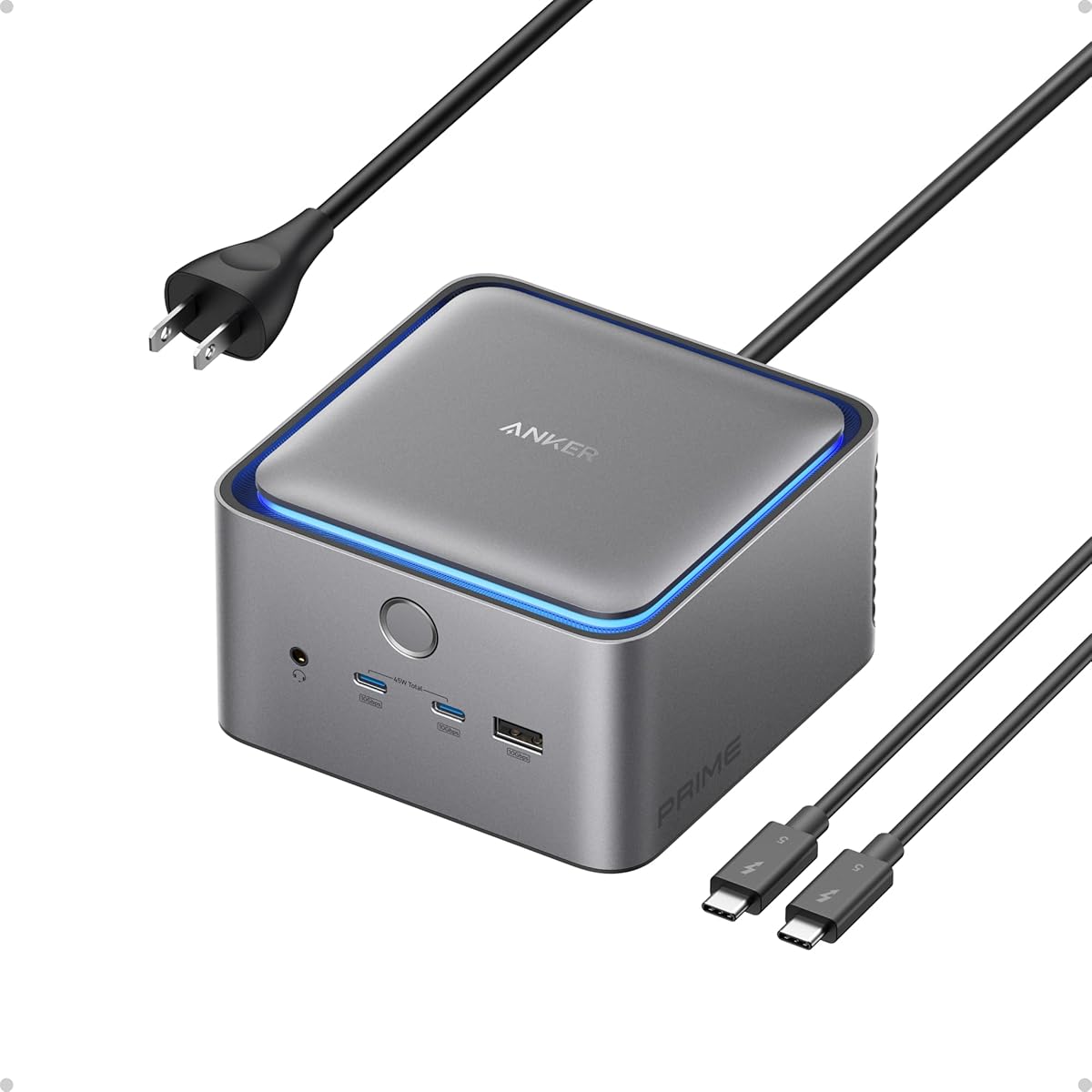
The Anker Prime 14-in-1 has a 4.3 rating and stands out for its 160W aggregate output, broad peripheral connectivity, and support for charging as many as four devices. It is a particularly compelling option for a shared desk where the laptop, phone, tablet, and accessories may all need power at the same time.
We may earn a commission when you buy through this link, at no additional cost to you.
Three USB-C ports can deliver up to 100W each, while the fourth charging connection is a USB-A port rated at up to 12W. The supplied upstream cable is 100W-rated and supports 10Gbps data transfer. Display users can connect two monitors through the dual HDMI outputs, with listed support for up to 2K@60Hz with a DP 1.4 laptop or 1080p@60Hz with a DP 1.2 laptop.
There are meaningful compatibility qualifications. The product does not support a 5120×1440 monitor, macOS presents identical content on both external displays, and Linux is not supported. The display resolutions are also lower than those offered by several Thunderbolt 4 and Thunderbolt 5 alternatives in the guide. These restrictions matter to creative professionals and users of ultrawide monitors.
This dock makes the most sense for a Windows or ChromeOS user who values abundant charging and broad device support more than maximum resolution. A Windows 10 or 11 laptop with DisplayPort Alternate Mode and Power Delivery is the intended environment. For users who need more display bandwidth, broader operating-system support, or higher-resolution screens, a Thunderbolt option is worth considering instead.
The 160W total output can serve a laptop and several smaller devices at once. That makes the dock useful in offices, studios, and home environments where charging demand regularly exceeds what a single laptop port can provide.
The 14-port design covers displays, wired networking, card access, and numerous USB devices. It is a straightforward way to create a full desktop setup around a compatible USB-C, USB4, or Thunderbolt laptop.
We may earn a commission when you buy through this link, at no additional cost to you.
The Baseus Spacemate RD1 Pro merges a 15-port dock with a charging station, making it one of the most desk-oriented options in the guide. Its 4.3 rating reflects a versatile feature set that includes 160W total output, two USB-C host-style connections, extensive USB expansion, Ethernet, card slots, and a Qi2.2 wireless charging pad.
We may earn a commission when you buy through this link, at no additional cost to you.
Its display claims include a single 4K@120Hz output through HDMI 2 or dual 4K@60Hz displays. Windows systems can use mirror and extend modes, while macOS supports single extended or mirrored dual displays. An enterprise-grade retimer is included to improve signal integrity, and a smart display reports port status, charging power, and safety alerts.
The product also offers Hybrid and Charging modes. Hybrid mode supports data, video, and power simultaneously, while Charging mode focuses on energy-saving charging when the workstation is not in active use. The included 180W GaN adapter, detachable regional plugs, and full-featured USB-C cable support a complete setup, but the rich control features and wireless charging make this more specialized than a conventional office dock.
It is a strong recommendation for a user who wants every device in one place and values 4K output, fast charging, and an informative status screen. Buyers should verify their operating system and chosen display configuration before installation. For a simpler dock, the Baseus is excellent when its wireless charging and integrated power controls are genuinely useful.
The Qi2.2 pad allows a compatible phone to rest on the dock while charging, turning the unit into a central station for the laptop and several mobile accessories. It reduces the need to keep separate charging blocks on the desktop.
The smart screen gives immediate information about power delivery, active ports, and safety notices. That visibility can be helpful when troubleshooting a multi-device setup or confirming that a device is receiving the intended connection.
We may earn a commission when you buy through this link, at no additional cost to you.
The Anker Prime DL7400 is designed around the ability to run three external monitors in 4K, making it a strong candidate for control rooms, trading stations, creative desks, and other screen-intensive environments. It has a 4.0 rating and uses DisplayLink to extend display capacity beyond a typical native USB-C connection.
We may earn a commission when you buy through this link, at no additional cost to you.
Host power reaches 140W through the upstream USB-C port, while two front USB-C ports each support 100W charging. The remaining connections include HDMI, DisplayPort, three USB-A ports, 2.5Gbps Ethernet, an audio connector, and SD and TF card slots. A smart display provides information about charging power, display performance, fan mode, and settings, while a built-in fan supports stable operation.
DisplayLink introduces software and content limitations. The latest DisplayLink driver is required, and DRM-protected streaming services may display a black screen while audio continues. Disabling browser hardware acceleration can help with some browser-streaming scenarios, but protected content should still be tested before it is relied upon for daily work. The included 10Gbps USB-C cable should be used for the host connection.
This is the right choice for a Windows 10 or 11 user who prioritizes three 4K screens above native simplicity. It is less suitable for users who refuse to install additional display drivers or frequently watch protected streaming services. For those who need the screen count, the combination of charging, fast networking, and triple-display support is unusually capable.
The DisplayLink-based design can support three 4K monitors, which is valuable for simultaneous documents, communication windows, dashboards, and creative references. Users should install the current driver and test their intended layout.
The 140W host input and two 100W front USB-C outputs cover several charging roles, while the integrated display provides useful operating information. The active fan adds an extra layer of thermal management.
We may earn a commission when you buy through this link, at no additional cost to you.
The HP Thunderbolt 4 Ultra 280W G6 stands out for power delivery far beyond ordinary laptop charging. Its 4.2 rating accompanies specifications for 330W total charging capability, support for four displays, and a large USB selection. This is a natural candidate for demanding mobile workstations that need room for heavy accessories and several power-hungry devices.
We may earn a commission when you buy through this link, at no additional cost to you.
The supplied information identifies Thunderbolt 4 connectivity, a 3.20-foot cable, and compatibility with both notebooks and desktop PCs. It also lists support for eight USB ports in the product title, including five USB Type-A connections, along with USB-C and RJ-45 connectivity. Those specifications suggest a dock intended to act as a central hub for a complex office, lab, editing suite, or production environment.
Because the supplied specifications are concise, important details such as exact display resolutions, refresh rates, individual USB speeds, and data-transfer allocation are not fully documented here. Buyers should therefore check the current product sheet for the precise port behavior of each connection. A high aggregate wattage can also be shared among connected devices rather than applied entirely to the host, depending on the power budget.
The HP G6 is best considered by organizations with demanding hardware and a need for maximum charging capacity. It may be overkill for a lightweight laptop or basic home-office setup, but it offers meaningful headroom for mobile workstations. Confirm the host's Thunderbolt capabilities, display preferences, and connected-device power needs before making it part of a standardized deployment.
The 330W charging capability and 280W charging figure create substantial headroom for a laptop and several powered accessories. This is useful where the host computer has a high-wattage battery system or the dock must serve multiple demanding devices.
Thunderbolt 4 provides a high-speed wired foundation, while the extensive USB selection supports keyboards, storage, networking, and other desktop accessories. Four-display capability makes the dock suitable for information-dense workspaces.
We may earn a commission when you buy through this link, at no additional cost to you.
The Dell Performance WD19DCS is built around one of the strongest charging profiles in the guide: up to 210W for compatible Dell Precision mobile workstations and 90W for non-Dell systems. Its 3.7 rating is the lowest listed, but the raw power capacity and workstation focus make it a specialist option for demanding Dell users rather than a general-purpose budget dock.
We may earn a commission when you buy through this link, at no additional cost to you.
A 240W power adapter supplies the dock, giving it ample headroom for a host computer and connected peripherals. The single-cable approach links displays and accessories while reducing cable clutter. Dell describes a future-ready, modular architecture with upgradeable power and connectivity, which can be useful in managed environments where equipment needs evolve over time.
The central compromise is host brand compatibility. Non-Dell systems receive only 90W, so the headline 210W figure should not be generalized to every laptop. The product's detailed port layout is also not provided in the supplied information, meaning buyers should check current display and peripheral requirements. Its lower aggregate rating may reflect compatibility complexity or customer experience rather than a lack of power.
For organizations using Dell Precision mobile workstations, this dock may solve a charging problem that ordinary 100W docks cannot. It is less compelling for mainstream laptops or mixed fleets where the lower non-Dell output could limit performance. Confirm that the exact workstation model is supported and that the available power budget matches the intended peripherals.
The 210W delivery to compatible Dell systems is the defining advantage. It is intended for mobile workstations that demand more input power than many conventional docks can provide.
Upgradeable power and connectivity can make the dock easier to standardize as an organization evolves. Unified firmware management also fits professional IT environments better than unmanaged consumer accessories.
We may earn a commission when you buy through this link, at no additional cost to you.
The Plugable Thunderbolt 4 Dock combines 100W charging, 13 ports, and dual-display support in a driverless design suited to professional deployment. Its 4.2 rating and Wirecutter recognition support its reputation as a straightforward high-performance workstation dock, while Intel Evo certification adds another credential.
We may earn a commission when you buy through this link, at no additional cost to you.
Thunderbolt 4 bandwidth reaches 40Gbps, with a downstream port capable of 8K output and 15W charging. The full port list includes two HDMI connections, four USB ports, one 10Gbps USB-C port, SD and microSD readers, an audio combination jack, Gigabit Ethernet, and a K-lock slot. This provides a balanced mix for external storage, networking, input devices, and dual screens.
Compatibility varies by operating system and Mac configuration. Windows systems with Thunderbolt 4, Thunderbolt 5, or USB4 can use the listed dual-screen arrangements, while Thunderbolt 3 and ordinary USB-C systems are limited to one external display. Base M1 and M2 Macs support one display, and only more advanced Apple Silicon configurations or base M3 in clamshell mode achieve the full dual-display capability.
This is an excellent option for IT teams deploying standardized desks across mixed modern devices, particularly where avoiding DisplayLink drivers is a priority. Users should verify their exact computer model before assuming dual-display support. With no extra display software required on compatible systems, the dock offers a relatively direct path to a stable full-workstation setup.
Native Thunderbolt operation simplifies setup for managed fleets. Users can connect a dock without installing a separate display-adapter utility, reducing one common source of support issues.
Dual HDMI, card readers, Gigabit Ethernet, audio, and multiple USB connections cover the majority of desk accessories. The result is a practical one-cable station for office, hybrid, and home-office environments.
We may earn a commission when you buy through this link, at no additional cost to you.
The UGREEN 8-in-1 is a compact Thunderbolt 4 option for users who prioritize bandwidth and display quality over a very large port inventory. It has a 4.3 rating, three Thunderbolt 4 connections, and support for up to two 4K@60Hz displays or a single 8K@30Hz display on compatible Windows laptops.
We may earn a commission when you buy through this link, at no additional cost to you.
Its eight-port arrangement includes one upstream and two downstream Thunderbolt 4 connections, three 10Gbps USB-A ports, and Gigabit Ethernet. A 140W GaN power adapter is included, with up to 85W available for charging the laptop. The downstream Thunderbolt 4 connections also provide 15W charging, allowing compatible peripherals to receive power while connected.
Mac support depends on the chip generation. Pro and Max versions of M-series chips and supported Intel configurations can extend two 4K@60Hz displays, while basic M-chip MacBooks are limited to one 4K@60Hz output. Full-featured USB-C computers and tablets also support only one display, and the 2018 Intel Mac mini is explicitly excluded.
This dock is a good fit for a compact desk where Thunderbolt 4 storage, networking, and one or two displays are the main requirements. It may be less convenient than the 13-, 14-, or 15-port alternatives when many legacy USB-A accessories must be connected simultaneously. Checking the computer's video and charging capabilities remains essential.
Three Thunderbolt 4 connections provide 40Gbps-class performance while preserving a compact port count. This approach favors high-speed peripherals over a large collection of slower connectors.
The included GaN adapter can provide up to 85W to the host, which covers many mainstream laptops. The dock must remain connected to this adapter to operate as described.
We may earn a commission when you buy through this link, at no additional cost to you.
The TobenONE DisplayLink Dock is the most port-dense model in the guide, with 18 connections and six dedicated video outputs. Its 4.4 rating reflects strong user reception, while the ability to extend three displays on macOS or up to four on compatible Windows systems gives it unusual flexibility for specialized desks.
We may earn a commission when you buy through this link, at no additional cost to you.
Video connectivity consists of three HDMI and three DisplayPort outputs, allowing different combinations depending on the host and operating system. Data and peripheral options include four USB 3.1 ports and two USB-C ports with transfer speeds up to 10Gbps, plus Gigabit Ethernet. The included 120W adapter can deliver up to 100W to the laptop, with 96W certified, and 18W to a phone through the front USB-C port.
The dock is broadly listed for Thunderbolt 5, Thunderbolt 4, Thunderbolt 3, USB4, and full-featured USB-C laptops. Supported systems include macOS 11 or later, Windows 10 or later, ChromeOS 100 or later, Ubuntu, and Android, although Linux and Unix are excluded and a compatible driver must be downloaded. Paid streaming services cannot be watched because of screen-recording limitations, and a stable power connection is important to avoid flickering.
This is a compelling choice for financial analysis, streaming production, software development, and other workflows that benefit from several high-resolution screens. It is less appropriate when protected streaming is central to the job or when the organization wants to avoid DisplayLink software. For compatible power users, however, the combination of display flexibility and 18 ports is exceptionally versatile.
Six video ports make it easier to combine HDMI and DisplayPort monitors without relying on adapters. Supported configurations include triple and quad 4K arrangements, subject to operating-system limitations.
The mixture of USB-A, USB-C, Ethernet, display, and power connections supports complex desks. Buyers should still confirm driver support and avoid workflows that depend on DRM-protected paid streaming.
We may earn a commission when you buy through this link, at no additional cost to you.
The right high wattage docking station depends on more than maximum charging output. Display behavior, host interfaces, operating-system support, network speed, and the number of legacy peripherals should all influence the decision before any purchase is made.
Choose enough power for the laptop and any demanding devices that share the dock's budget. Verify whether the host is a thin consumer notebook, a performance laptop, or a mobile workstation before deciding.
Treat advertised monitor counts as a starting point. Confirm exact screen sizes, resolutions, refresh rates, and operating-system restrictions before finalizing a multi-display setup.
Match the dock to the ports your computer actually provides. A faster dock cannot deliver its full potential through a host that lacks the corresponding protocol.
List required devices first, then confirm the exact ports rather than relying on the in-1 or in-3 marketing label. That prevents a costly mismatch.
Prioritize the network and storage speed that affects the user's daily work. Faster specifications offer little value when connected equipment cannot use the available bandwidth.
Check the exact computer model and operating-system version against the compatibility notes. This is especially important for Mac users and offices deploying a mixed fleet.
Consider thermal management when the dock will remain under heavy load. For occasional use, a simpler passive design may be sufficient and less visually intrusive.
Confirm the box contents before ordering. A dock may need its specified high-speed cable and external power supply to achieve the published performance.
Begin by checking the laptop manufacturer's requirements for display output, charging, and operating-system support. Connect the specified power adapter to the dock first, then attach the correct host cable. For Thunderbolt 4 or 5 models, use a cable rated for the corresponding protocol; for DisplayLink products, install the current driver and restart the computer if the manufacturer recommends it.
Add displays one at a time and confirm the resolution and refresh rate before connecting the rest. Open the computer's display settings to select extend or mirror mode as required. After displays are stable, connect storage, Ethernet, card readers, audio, and input devices. Test USB-C charging separately from data transfer because some docks allocate power and bandwidth differently across their ports.
For daily care, keep the dock and ventilation openings free of dust, liquids, and stacked objects. Route the host cable without creating tight bends, and avoid frequently unplugging the connector while devices are transferring data. Periodically update display drivers and dock firmware when the manufacturer provides them, and retest important displays or charging arrangements after any major laptop, operating-system, or peripheral change.
Choose a dock that supplies enough power for your specific laptop and any demanding devices connected to the same charger. Mainstream laptops may work well with around 85W to 100W, while performance notebooks and mobile workstations may benefit from 140W or more. A dock with a high aggregate wattage does not guarantee that the host receives the entire amount.
Not always. Charging speed depends on the laptop's supported input protocol, the power the dock allocates to the host connection, the adapter, and the internal battery design. A higher rating can prevent a heavy workload from draining the battery, but it may not reduce charging time if the computer itself accepts a lower rate.
They solve different problems. DisplayLink can extend more screens across a wider range of USB-C laptops, but it requires software and may not support certain protected streaming services. Thunderbolt and USB4 docks can provide native high-bandwidth connections, excellent display performance, and simpler deployment on fully compatible computers.
You can physically connect many USB-C laptops, but features may be reduced. Data speeds, display counts, charging, and card-reader operation depend on whether the laptop supports USB4, Thunderbolt, DisplayPort Alternate Mode, and Power Delivery. Always verify the host port and operating-system compatibility before buying.
A native laptop display output may be limited by the protocol built into the computer. DisplayLink uses a software and network-based graphics link to add screens beyond that native limit. It can therefore support more monitors, but it depends on driver installation and can have limitations with protected streaming content.
Many high-wattage docks require their listed adapter to deliver full functionality, including host charging and multiple high-power USB-C outputs. The product documentation identifies the included adapters for several models in this guide. Using an underpowered or incompatible adapter can prevent displays, networking, or charging from working correctly.
It depends on the dock and the exact Mac model. Native Thunderbolt and USB4 docks have chip-specific limits, while DisplayLink models can extend more screens but require a driver. The TobenONE supports up to three displays on macOS, whereas several other products support one or two depending on the MacBook generation and connection mode.
Test every intended display at its intended resolution and refresh rate, then confirm host charging, external storage, Ethernet, audio, and any USB-C peripherals. For DisplayLink setups, also test the applications and streaming services you use regularly. A short compatibility check prevents a technically powerful dock from causing workflow interruptions.
The Dell Pro WD25 offers the most balanced business-oriented combination of 100W charging, multi-display support, and manageability. The Anker Prime 14-in-1 stands out for 160W aggregate charging and broad device support, while the Baseus Spacemate RD1 Pro combines 160W output with 4K displays, a smart status screen, and integrated Qi2.2 wireless charging.
For specialized needs, prioritize the feature that directly affects your work: Thunderbolt bandwidth for high-speed storage, DisplayLink for more screens, maximum adapter headroom for demanding workstations, or 2.5Gbps Ethernet for rapid network transfers. Always verify host compatibility, display limits, required drivers, and included cables before finalizing a choice.
Current prices and retailer configurations can change, so compare the latest listing, warranty terms, and bundle contents at the time of purchase. Use the supplied product links to review current details, and ensure that the dock's charging capacity and display behavior match the exact computer and peripherals in your workspace.
