
WAVLINK USB 3.0 or USB C to Dual HDMI 4K@60hz Splitter
4.4Editor score
Dual 4K 60Hz output
USB-C and USB-A
Extended and mirrored displays
This Displaylink Adapter guide compares 10 options for dual-monitor support, 4K output, Mac and Windows compatibility, ports, and ease of use.
A Displaylink Adapter gives compatible laptops access to more displays than their built-in video hardware may support, making it useful for macOS and Windows users who need an expanded workspace. The right model should balance resolution, port selection, driver support, charging, and the type of peripherals you want to connect.
This guide compares ten adapters based on the verified product information supplied for each model. It covers dual-monitor configurations, maximum output resolution, operating-system compatibility, display interfaces, charging capabilities, USB expansion, and important limitations involving drivers and protected content.
Each review explains who benefits most from that particular adapter and where its compromises may matter. The entries also show how the products differ for MacBook users, traditional Windows laptops, ChromeOS systems, and offices that need either HDMI or DisplayPort. Prices and availability can change, so confirm current details before purchasing.
4.4Editor score

4.6Editor score

4.5Editor score
The table below compares all ten adapters by display output, host connectivity, platform support, expansion ports, and major usage considerations.



The ACASIS USB C to Dual HDMI DisplayLink Adapter combines a two-monitor DisplayLink solution with laptop charging and three USB-A ports. It carries a 4.3 rating and stands out for packing more everyday dock functions into a portable aluminum enclosure. A single host connection can support an extended or mirrored desktop across two 4K displays at up to 60Hz.
We may earn a commission when you buy through this link, at no additional cost to you.
Its strongest feature is the combination of dual HDMI output and 100W Power Delivery. That allows a compatible MacBook Pro, MacBook Air, or Windows notebook to remain powered while two external screens are active. The three USB-A ports provide a practical place to attach a mouse, keyboard, or flash drive, although their listed 480Mbps speed makes them better suited to peripherals than large file transfers.
There are important trade-offs. DisplayLink driver installation is required on macOS and Windows, and ACASIS specifically advises unplugging the adapter only when the computer is off. The product is not intended for gaming or HDCP-protected content, which rules out many streaming applications. MacBook Neo and newer M-series Mac support may also depend on the operating system and driver version available at the time of use.
This is a strong choice for a user who wants more than a simple video adapter. It suits desk setups where charging, external displays, and common peripherals all need to connect through a compact hub. Buyers focused only on video may prefer a smaller option, while those who regularly use streaming or gaming should look for a native display solution instead.
The 100W charging input and three USB-A ports reduce the number of separate accessories needed at a shared desk. It is a practical all-in-one choice for a mobile office, home workstation, or conference setup where peripherals must travel with the laptop.
Dual 4K 60Hz output makes this adapter useful for keeping reference material, communication tools, and a primary application visible at the same time. Productivity applications are a better target than latency-sensitive games or protected streaming.
We may earn a commission when you buy through this link, at no additional cost to you.
The WAVLINK USB 3.0 or USB C to Dual HDMI 4K@60hz Splitter delivers two external displays from one host connection and earns a 4.4 rating. It is designed around practical productivity, with support for current Apple silicon Mac models, Windows 10 and 11, and compatible ChromeOS systems. The included hybrid cable simplifies use with USB-C, USB-A, Thunderbolt, and USB 4 ports.
We may earn a commission when you buy through this link, at no additional cost to you.
Both HDMI outputs can operate at up to 4K 60Hz, and the adapter supports mirroring as well as an expanded desktop. That makes it appealing for users who want more room for spreadsheets, browser windows, coding tools, or web-conferencing applications. The listed operating-system coverage is broad, but the DisplayLink driver remains a necessary part of normal operation.
WAVLINK is explicit that the adapter is not recommended for gaming, graphics-intensive work, design work, or HDCP-protected services such as Netflix and Hulu. Linux, Unix, and iOS are also outside the stated support list. These are meaningful exclusions, but the target use of standard office and productivity software is clearly served.
For someone seeking a straightforward two-HDMI display expansion without paying for a large docking station, this adapter is a persuasive option. Its broad platform support and 4.4 rating make it a sensible general recommendation, especially for productivity-oriented Mac and Windows users. Users who require protected video or high-end graphics workflows should look elsewhere.
The hybrid USB-C and USB-A cable reduces compatibility friction when moving between newer Thunderbolt or USB 4 systems and older USB 3.0 computers. It is a useful design for offices with mixed hardware.
Two 4K 60Hz screens create a balanced workspace for documents, spreadsheets, browser research, and conferencing. Users should treat the adapter as an office display tool rather than a gaming or protected-entertainment solution.
We may earn a commission when you buy through this link, at no additional cost to you.
The WAVLINK USB 3.0/USB C to HDMI Universal Video Adapter takes a different approach from the dual-output models. It uses one HDMI connection per adapter, but the product information states that as many as six additional monitors can be supported on a PC. With a 4.4 rating, it is a flexible option for builds that need more screens than a typical laptop natively supports.
We may earn a commission when you buy through this link, at no additional cost to you.
Its maximum listed output is 2048 by 1152 at 60Hz or 2560 by 1440 at 50Hz. That is suitable for office productivity and detailed desktop space, although it is not the 4K 60Hz specification offered by most of the other products in this guide. A built-in 2.1-channel microphone input and headphone output add value for users who also need basic audio connectivity.
The operating-system range is notably broad, covering multiple Windows versions, recent macOS releases, Ubuntu, ChromeOS, and Android devices with USB OTG. DisplayLink driver installation is still required, and actual results can depend on the host computer, its available bandwidth, and the number of simultaneous displays. Buyers needing two 4K screens from one unit should choose a dual-output model instead.
This adapter is best for users who prioritize flexibility across operating systems, basic audio features, or the ability to add several displays incrementally. It is less compelling for a simple MacBook desk that specifically needs two 4K monitors. For that scenario, a dedicated dual-HDMI adapter provides a more direct route to higher combined resolution.
The support for multiple adapters gives offices and power users a way to add screens one at a time. It is particularly interesting for Windows PCs that can accommodate several DisplayLink connections.
External microphone and headphone connections make the adapter more than a simple display converter. That convenience can reduce the need for a larger dock when basic audio routing is all that is required.
We may earn a commission when you buy through this link, at no additional cost to you.
The Plugable USB C to HDMI Adapter, Dual Monitor 4K 60Hz is purpose-built for users who want to overcome the single-external-display limit of many MacBooks. It has a 4.3 rating and can add two 4K 60Hz HDMI displays to an M1-through-M5 MacBook or MacBook Neo, creating a three-screen workspace when the laptop display is included.
We may earn a commission when you buy through this link, at no additional cost to you.
Plugable emphasizes compatibility with macOS 11 and later, Windows 10 and later, and ChromeOS 100 or later on systems featuring Thunderbolt, USB 4, or USB-C. Mac users must install DisplayLink Manager and grant the necessary display permission. Windows and ChromeOS systems are described as plug-and-play, making the product easier to deploy in a mixed office.
The main limitation concerns HDCP-protected streaming applications. Netflix, Disney+, Hulu, and Prime Video are not compatible through the DisplayLink connection, so a separate native display adapter is necessary for those services. The adapter is otherwise designed for productivity, coding, and standard office applications, where its dual 4K output can be highly useful.
This is a particularly compelling recommendation for MacBook Air or Pro users who routinely work with more applications than one external display can accommodate. Its long-term support is another plus for offices standardizing on one product. The driver requirement is a normal part of DisplayLink use rather than a hidden drawback, but users should plan for initial setup.
Adding two external monitors to a Mac that natively supports one is the product's primary advantage. The result is a three-display arrangement that can separate communication, reference material, and active work.
Lifetime support from Plugable's North American connectivity team gives institutional buyers a practical reason to consider this adapter. It is also reassuring for home offices that want a dependable support path.
We may earn a commission when you buy through this link, at no additional cost to you.
The Plugable USB-C & USB-A Dual 4K HDMI Adapter with DisplayLink earns a 4.5 rating and offers a polished option for mixed Windows and ChromeOS environments. It can drive two HDMI monitors at up to 4K 60Hz using either a modern USB-C, Thunderbolt, or USB 4 connection or the included USB-A adapter for compatible older systems.
We may earn a commission when you buy through this link, at no additional cost to you.
Its DisplayLink DL-6950 chipset provides the dual-display processing without requiring an external graphics card or a dedicated Thunderbolt connection. The integrated USB-A adapter stays attached to the unit, reducing the need to carry another loose accessory when moving between modern and legacy computers. Extended and mirrored modes both support productivity, coding, spreadsheets, browsing, and general multitasking.
Windows requires a DisplayLink driver, while ChromeOS 100 or later receives automatic support on compatible systems. macOS is not recommended, which sharply narrows the audience compared with several dual-HDMI alternatives. HDCP-protected streaming services are also excluded, so this is an office-focused product rather than an entertainment solution.
For organizations that want one well-specified adapter across modern and older Windows laptops, this model offers a convincing package. Its high rating, 4K 60Hz dual output, integrated host adapter, and lifetime support make it a strong premium choice. Mac users should choose one of the adapters specifically designed for macOS instead.
The attached USB-A adapter makes it easy to deploy the same unit across systems that lack a free USB-C port. This reduces purchasing complexity in offices with a mixed device fleet.
The DL-6950 chipset handles two 4K 60Hz outputs without requiring an external GPU. That keeps the connection model relatively simple for everyday business use.
We may earn a commission when you buy through this link, at no additional cost to you.
The StarTech USB-A DisplayLink Dual 4K 60Hz DP Mini Dock is a compact option for traditional USB-A laptops that need two external displays and a wired network connection. It has a 4.4 rating, uses a DisplayLink-certified DL-6950 chipset, and supports dual DisplayPort output at up to 4K 60Hz.
We may earn a commission when you buy through this link, at no additional cost to you.
This product fills a distinct niche. Many budget display adapters focus exclusively on USB-C and HDMI, while the StarTech model begins with USB 3.0 and provides DisplayPort. A Gigabit Ethernet port adds a stable wired-network option that can be especially valuable in offices where a laptop lacks an Ethernet jack or Wi-Fi performance is inconsistent.
The included 30-centimeter attached cable offers some placement flexibility and helps reduce strain on ports on devices such as Surface Pro. The mini dock is bus-powered and compatible with a wide range of USB-A laptops, ultrabooks, Chromebooks, and Surface Pros. DisplayPort-equipped monitors can connect directly, but users whose displays only have HDMI will need suitable DisplayPort-to-HDMI adapters or cables.
This is a strong match for enterprise and office users who prefer DisplayPort and need Ethernet without carrying a larger full-featured dock. It is less convenient for modern USB-C-only users, and the display-cable requirement deserves attention before purchase. Within that niche, the combination of compactness, dual 4K support, and networking is unusually useful.
Adding Gigabit Ethernet to a small display adapter is useful in fixed offices. It creates a more complete workstation without moving to a large desktop dock.
Dual DisplayPort output suits many professional monitors and supports 4K 60Hz on each display. Check the monitor interface before ordering, especially when only HDMI is available.
We may earn a commission when you buy through this link, at no additional cost to you.
The ACASIS Dual DP DisplayLink Adapter for M1/M2/M3/M4 MacBook Air/Pro has the highest rating in this roundup at 4.8. It is designed to turn compatible MacBook and Windows laptops into dual-DisplayPort workstations, with each display capable of running at up to 4K 60Hz. Its core appeal is the combination of high-resolution extended output, charging, and peripheral connectivity.
We may earn a commission when you buy through this link, at no additional cost to you.
The adapter includes two DisplayPort outputs, a 100W Power Delivery connection, and three USB-A ports. That means a user can connect two suitable monitors while keeping a compatible notebook powered and attaching a keyboard, mouse, or storage device. The primary DisplayPort beside the PD port supports MST, while the two display outputs form the main dual-monitor arrangement.
Users must install the DisplayLink driver before first use. They must also confirm that their monitors have DisplayPort or obtain a DisplayPort-to-HDMI cable. The supplied information describes the product as suitable for video editing and multitasking, but DisplayLink behavior and output quality can depend on the application, host resources, and system configuration.
This is an excellent choice for MacBook users whose displays use DisplayPort and who want more than a simple video converter. Its 4.8 rating, 4K dual output, and integrated charging make it especially attractive for a compact professional workstation. It is less convenient for an HDMI-only monitor arrangement, but the overall feature set is strong.
Two 4K 60Hz DisplayPort outputs provide a large, sharp workspace for editing timelines, comparing documents, and keeping communication tools visible. The design is aimed at productivity and power users.
Power Delivery and three USB-A ports make the adapter function as a compact workstation hub. It reduces desk clutter and simplifies travel between a home and an office.
We may earn a commission when you buy through this link, at no additional cost to you.
The WAVLINK USB 3.0 & USB C to Dual HDMI Adapter 4K@60Hz is a balanced, broadly compatible option with a 4.6 rating. It provides two 4K 60Hz HDMI outputs from a single USB-C or USB-A connection and supports modern Apple silicon Macs, Windows 10 and 11, and compatible ChromeOS 100 or later systems.
We may earn a commission when you buy through this link, at no additional cost to you.
Its USB-C side supports Thunderbolt 3 and 4, USB4, and other compatible USB connections, while the USB-A option provides a path to older equipment. Users can mirror or extend the desktop, which allows a laptop screen to be reserved for communication while two external displays handle research, documents, or development tools. The adapter is explicitly aimed at professional and everyday productivity.
WAVLINK includes encrypted DL-chip technology intended to protect data in corporate settings, although the product remains subject to the usual need to install the DisplayLink driver. Linux, Unix, iPad, and iOS are not supported. Netflix-style HDCP content is also excluded, and gaming is not a recommended use because of the demands of the video workflow.
This adapter is an excellent general recommendation for a Mac or Windows user who wants dual high-resolution HDMI displays without requiring a full docking station. The 4.6 rating, broad platform coverage, and simple display expansion make it stand out. It is particularly well suited to office, development, financial-analysis, and conferencing workflows that prioritize productivity over protected entertainment.
Support for current Mac models, Windows 10 and 11, and compatible ChromeOS devices makes the adapter easy to standardize across common office platforms. The host connection options further reduce deployment friction.
The expanded display mode is useful for developers, analysts, and remote workers who need to keep several high-resolution windows visible. It also supports mirroring when a presentation or shared-view workflow is needed.
We may earn a commission when you buy through this link, at no additional cost to you.
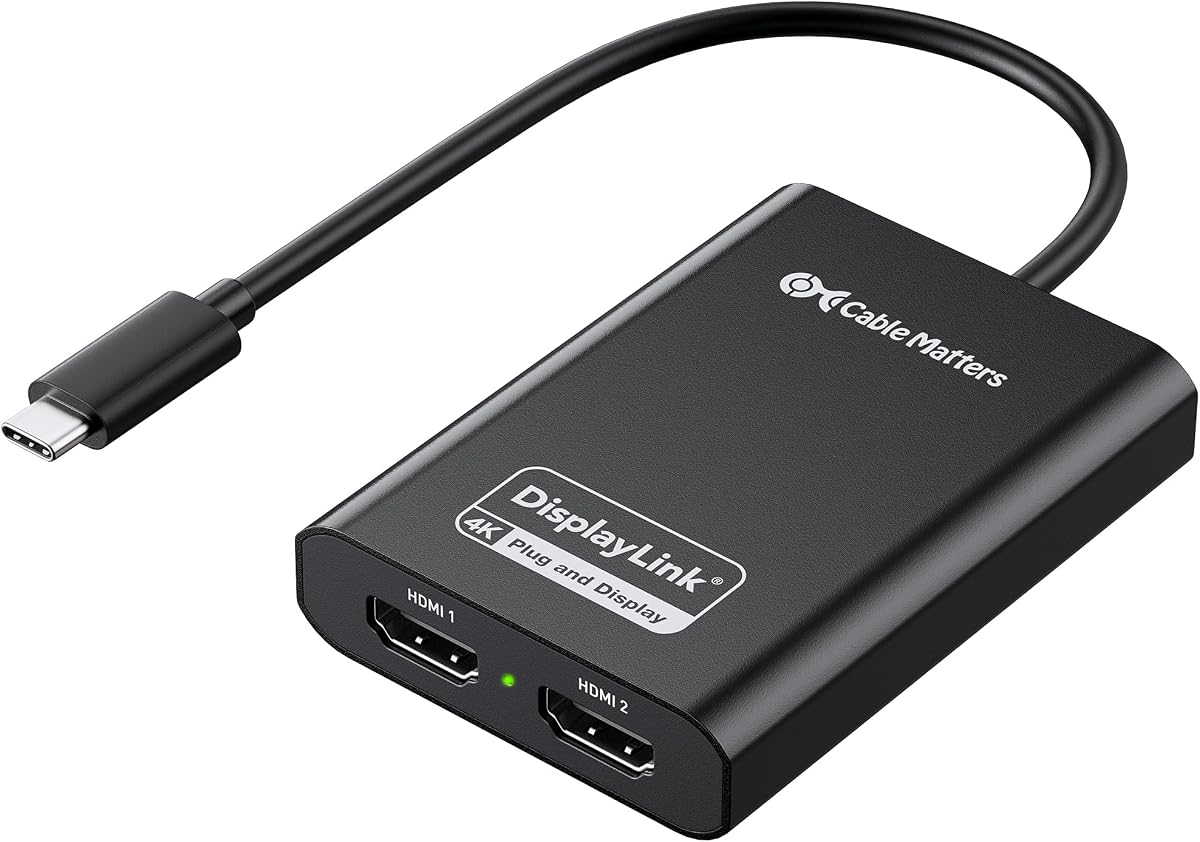
The Cable Matters USB C to Dual HDMI Adapter is a DisplayLink Certified product with a 4.0 rating. It expands a compatible USB-C, USB4, or Thunderbolt laptop into two HDMI outputs and supports true extended displays on macOS and Windows. Its listed maximum performance is two 4K 60Hz monitors through HDMI 2.0.
We may earn a commission when you buy through this link, at no additional cost to you.
The adapter uses USB 3.2 Gen 1 bandwidth and is compatible with MacBook Air and Pro models, Dell XPS systems, HP Spectre devices, Lenovo ThinkPad systems, and other modern laptops. Supported systems include macOS 11 or later, Windows 10 and 11, and ChromeOS. Mac users must install DisplayLink Manager and grant Screen Recording permission, while other platforms also require driver installation for full operation.
Performance can vary with processor capability, memory, USB bandwidth, and the applications running. For the smoothest dual-4K experience, the product information recommends a Windows 10 or 11 laptop with an Intel 8th-generation Core i5 or i7 or a comparable newer processor. HDCP is unsupported, and HDMI cables are not included, so the complete setup may require additional monitor cables.
The durable aluminum housing helps dissipate heat and suits travel use, although it may become warm during operation. This is a good option for buyers who value certification, a clear 4K dual-display target, and broad modern hardware support. Its lower aggregate rating and strict Mac setup process deserve consideration before purchase.
The recommended system specifications help users understand why some computers handle dual 4K output more smoothly than others. Checking the host processor and USB generation can prevent avoidable frustration.
The aluminum enclosure provides a sturdy, compact option that can move between workspaces. A warm surface during operation is described as normal rather than a sign of failure.
We may earn a commission when you buy through this link, at no additional cost to you.
The Sonnet DisplayLink Dual 4K HDMI Adapter is a dual-screen option with a 4.4 rating and an emphasis on flexible resolution and refresh-rate support. It connects two 4K displays at 60Hz to a single Thunderbolt, USB 3, or USB 4 port, and it can also support two 1440p or 1880p displays at up to 144Hz.
We may earn a commission when you buy through this link, at no additional cost to you.
An included USB-A female-to-USB-C male adapter makes the device more practical for systems without a convenient USB-C connection. The adapter can extend or mirror the desktop, allowing different applications and reference windows to occupy separate screens. It also supports audio and lower-resolution 1080p displays at 60Hz, giving users flexibility in how the monitors are configured.
Sonnet specifically calls out compatibility with M1 and M2 MacBook Air and MacBook Pro systems, along with M1 Pro, M1 Max, and M1 Ultra configurations and other Mac and Windows computers. Since it uses DisplayLink, driver support and display performance remain dependent on the host system and application. It is a display adapter rather than a full docking station, with no listed charging or peripheral-expansion ports.
Sonnet is a strong fit for users who value high refresh rates at a slightly lower resolution, particularly alongside 4K productivity displays. It may appeal to advanced Mac users working across M-series systems, though it does not cover newer platforms as explicitly as some alternatives. For those prioritizing 4K, broad recent-platform support, and simple productivity expansion, another model may be more suitable.
Supporting two displays at 1440p or 1880p up to 144Hz gives the adapter a distinct advantage for smooth desktop motion and responsive creative work. The exact result depends on the chosen resolution and host configuration.
The Sonnet design concentrates on video expansion and audio rather than charging or USB peripherals. It works best alongside separate solutions when those functions are needed.
We may earn a commission when you buy through this link, at no additional cost to you.
The most useful DisplayLink Adapter is the one that matches your computer, monitor connections, operating system, and daily workflow. Review output limits, driver behavior, and physical ports before making a selection.
Determine whether you need one additional display or two. A single-HDMI adapter is simpler and can be appropriate for a laptop that already supports one native external screen, but a dual-output model is more useful when you want a large three-screen workspace including the laptop panel. Multi-monitor arrangements also need enough host USB bandwidth, so a USB 3.0, USB 3.2 Gen 1, USB 4, or Thunderbolt connection is preferable to basic USB 2.0.
Inspect the inputs on your monitors before choosing an adapter. Most of the reviewed dual-output products use HDMI, while the ACASIS Dual DP and StarTech mini dock use DisplayPort. HDMI offers convenient compatibility with many televisions and office monitors, whereas DisplayPort is popular with professional computer panels and can offer a broader range of high-refresh configurations. If the monitor lacks the required port, budget for a suitable quality adapter or cable.
Resolution and refresh rate should be considered together. Dual 4K 60Hz is the dominant specification in this guide and provides sharp output for documents, code, spreadsheets, and creative applications. The Sonnet model also supports two 1440p or 1880p displays at up to 144Hz, while the single-output WAVLINK universal adapter has a lower listed ceiling. Actual results can depend on the host processor, graphics system, applications, and number of active displays.
The strongest choices support current macOS, Windows, and compatible ChromeOS systems, but their setup behavior differs. Mac users generally need to install DisplayLink Manager and approve display or screen-recording permissions. Windows generally requires the DisplayLink driver, although some ChromeOS systems receive automatic support. Several products explicitly exclude Linux, iOS, and iPad, so check your exact system before ordering. A broadly compatible adapter is not necessarily compatible with every operating-system version.
A DisplayLink adapter that also charges the laptop can simplify a desk setup. The ACASIS options include 100W USB-C Power Delivery, allowing a compatible notebook to remain powered while external displays and peripherals are active. The other reviewed products focus primarily on video and do not list charging. If your adapter must also run your computer, verify that the host port supports the required USB-C power profile and that the charger supplied with the laptop is compatible.
A video adapter and a docking station solve different needs. The ACASIS models include three USB-A ports for keyboards, mice, and flash drives, while the StarTech USB-A mini dock adds Gigabit Ethernet and dual DisplayPort. Check the listed transfer speed before using USB-A for large files. If you need wired networking, charging, card readers, or several high-speed peripherals, a full docking station may be a better choice than a dedicated display adapter.
DisplayLink products depend on software, and none of the reviewed models should be assumed to support protected streaming content. Netflix, Hulu, Disney+, Prime Video, and similar HDCP-protected services are incompatible with the DisplayLink-connected displays described in the product information. Gaming is also discouraged in several listings. These limitations matter when a monitor serves as a general-purpose television-like display. For entertainment, consider a native display output instead.
A compact adapter is valuable for people who move between home, office, and meeting spaces. The ACASIS products use aluminum housings described as portable, while the StarTech mini dock is bus-powered and includes a 30-centimeter attached cable. Consider connector bulk, attached cable length, and the need to carry separate display cables. A metal enclosure can run warm during operation, which the relevant product information describes as normal.
Begin by confirming the host port, operating system, monitor interfaces, and required DisplayLink driver. Connect the adapter to the laptop before attaching displays, then install the current driver or management application from the official DisplayLink source. On macOS, approve the requested display or Screen Recording permissions and restart if the system prompts you to do so.
Connect each monitor with a cable that matches the adapter's output and the monitor's input. Use the operating system's display settings to choose extended or mirrored mode, arrange the screens, and select the intended resolution and refresh rate. If output seems unstable, reseat the host connection, test the monitor cable, and confirm that the computer has sufficient USB bandwidth for the selected display configuration.
Treat the adapter as an active electronic device rather than an unrestricted cable hub. Connect it directly to the computer, keep the housing from blocking ventilation, and avoid sharply bending attached leads. Follow any product-specific instruction to disconnect the device only when the computer is off, and do not attempt to display HDCP-protected services through a connection that does not support them.
Usually, yes. Most DisplayLink adapters require the current DisplayLink software or DisplayLink Manager on macOS and Windows. The exact process can vary by operating system, and some compatible ChromeOS systems provide automatic support. Mac users should also approve the display or Screen Recording permissions requested during setup.
Yes, many models in this guide are specifically designed to add two external displays to compatible MacBook systems, including M-series models. The laptop display may remain visible, creating a three-screen arrangement. The result depends on the adapter, Mac configuration, driver version, display resolution, and applications in use.
Generally, no. The product information for the adapters in this guide states that HDCP-protected streaming content is not supported, which includes major services such as Netflix, Hulu, Disney+, and Prime Video. You may need a native display connection or a separate compatible adapter for those services.
These adapters are primarily intended for productivity, office work, coding, web browsing, and general multitasking. Several product descriptions specifically discourage gaming because of the demands placed on the host and DisplayLink workflow. Competitive gaming is better served by a native graphics output that directly supports the monitor and desired refresh rate.
A fast host connection is advisable for stable dual-display performance, especially at 4K. The relevant adapters support various combinations of USB 3.0, USB 3.2 Gen 1, USB 4, and Thunderbolt, depending on the model. Using a slower USB 2.0 connection can reduce bandwidth and limit display capabilities.
Choose whichever interface your monitors already support most conveniently. HDMI is the primary choice for most of the dual-output adapters in this guide, while the ACASIS Dual DP and StarTech mini dock use DisplayPort. Confirm the physical inputs on your displays and purchase any necessary cable or adapter before the adapter arrives.
The WAVLINK universal HDMI adapter states that one adapter is required per monitor and that up to six additional monitors can be supported on PCs. The dual-HDMI and dual-DisplayPort models each drive two displays from one unit. More screens also mean greater demands on the host, drivers, USB bandwidth, and available resources.
Start by confirming that the latest driver is installed, the computer has rebooted, and the required macOS permissions have been approved. Check cable connections, monitor input settings, and the selected extended or mirrored mode. Also verify that the host connection meets the required USB or Thunderbolt standard and that the application or content is not restricted by HDCP.
The WAVLINK USB-C and USB-A dual-HDMI model offers the strongest balanced package for many buyers, with a 4.6 rating, two 4K 60Hz outputs, and broad support for modern macOS, Windows, and ChromeOS systems. The WAVLINK dual-HDMI model is a value-oriented alternative, while the Plugable USB-C and USB-A adapter stands out for mixed Windows hardware, integrated connectivity, and lifetime support.
Prioritize the connection your monitors already use, confirm operating-system support, and decide whether you need a simple video adapter or a hub with charging, USB ports, and Ethernet. Dual 4K 60Hz is the most useful general specification for productivity, but single-output flexibility, high refresh rates, and DisplayPort can matter in specialized setups. Always account for the required driver and the lack of HDCP support.
Product configurations, software requirements, and prices can change over time. Before purchasing, verify the current system requirements, display specifications, included accessories, and return terms through the linked product listing. That final check helps ensure the chosen DisplayLink Adapter fits both the computer and the intended workspace.